
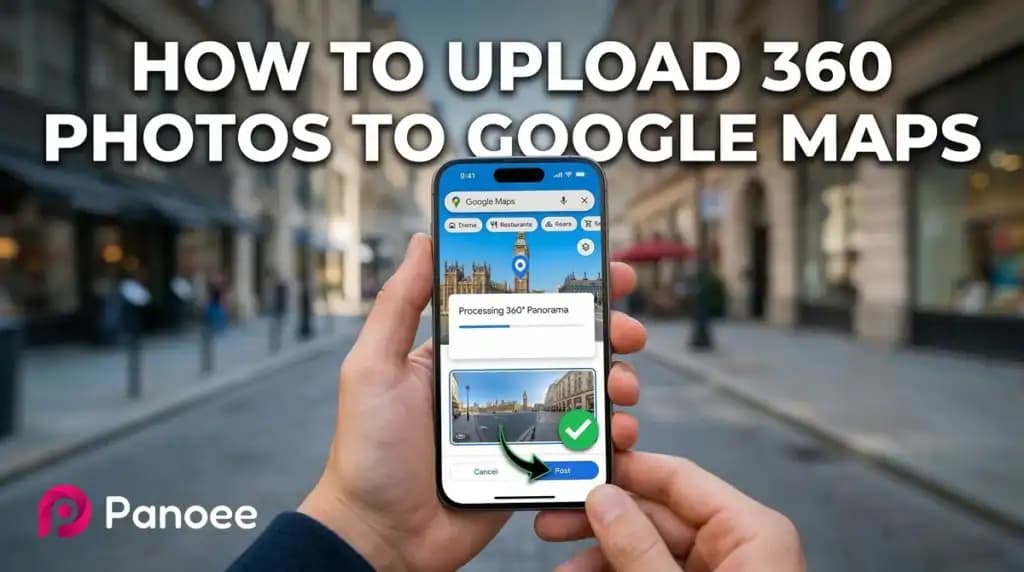
Uploading immersive imagery to Google Maps has evolved, shifting how creators publish their work. The new way requires using the main Google Maps mobile app for individual 360 images, or the web-based Street View Studio for bulk and video uploads. While Google Maps offers local visibility, dedicated platforms like Panoee.live provide superior, uncompressed 360-degree image quality, advanced interactive features, and direct publishing capabilities.
Why the Upload Process Evolved
The standalone Google Street View app was discontinued in 2023. To upload 360 imagery today, users must utilize the “Contribute” tab within the standard Google Maps mobile app or use the web-based Street View Studio on a desktop. This consolidated Google’s mapping tools into fewer applications.
As a leading Virtual Tour Software, we understand that workflow efficiency is critical for modern creators. Rather than forcing users to juggle multiple external tools, we integrated direct Google Street View publishing right into our platform. This means that for real-world projects—from mapping large hotel chains to complex university campuses – our users can bypass manual uploaders and push their panoramas straight to Google Maps seamlessly. You can learn How to upload 360° virtual tour to Google Street View.
How to Upload 360 Photos via the Google Maps Mobile App
To upload a 360 photo from your smartphone, open the Google Maps app and search for the specific location. Scroll down on the location’s profile to the horizontal menu, tap on “Photos,” and select “Add media”. Choose your 360 photo from your camera roll and tap “Add” to upload it directly to Google Maps. Google Maps will automatically recognize the 360 metadata and process it.

Step-by-Step Mobile Upload Process:
- Capture your 360 panorama and ensure it is saved to your phone’s native gallery.
- Open the Google Maps app on your iOS or Android device.
- Search for the exact local listing or business for your photo.
- Scroll down on the location’s profile to the horizontal menu and select Photos.
- Tap on Add media to open your camera roll.
- Select your 360 photo and tap Add to publish it to the map.
Before uploading, ensure your image is formatted correctly. You can quickly preview it using our 360 Panorama Viewer. Please note that this is a free, independent web-based tool that Panoee provides free of charge to users for viewing and optimizing 360-degree images without needing an app installation. If you need a refresher on the basics of interacting with these files, read our guide on how to view 360 panorama.
How to Upload to Google Maps on Desktop (Street View Studio)
For desktop users, or those handling 360 videos and bulk uploads manually, Google introduced Street View Studio. Access it via your web browser, click the “Upload” button, select your 360 files (MP4 or images), map them to a physical location, and click submit.
For complete, step-by-step instructions on navigating Google’s desktop platform, please refer to their official tutorial on How to use Street View Studio.
Requirements for 360 Photos on Google Maps
To ensure your 360 photos are accepted by Google Maps, they must be at least 7.5 megapixels (4K resolution) and have a 2:1 aspect ratio. The image format should be JPEG, and the file must contain proper equirectangular metadata so Google recognizes it as a sphere.
If your image file is too heavy, lacks metadata, or needs tweaking, our free 360 Panorama Optimization tool (another free, independent web-based tool from Panoee) can help you perfectly format it before you upload.
Drawbacks of Uploading 360 Photos to Google Maps
While uploading to Google Maps provides excellent local search visibility, it causes a severe reduction in 360-degree image quality due to compression. Furthermore, it lacks many of the interactive features commonly found in dedicated virtual tour platforms, leaving users with extremely limited control over customization options.
Google Maps vs. Dedicated 360 Hosting
| Feature | Google Maps | Dedicated Hosting (Panoee.live) |
| Image Quality | Heavily compressed / Blurry | Uncompressed, up to 8K resolution |
| Customization | None | Full branding, custom UI, nadir patching |
| Hotspots/Links | No | Yes (Text, Audio, Video, Web Links) |
| Lead Generation | No | Yes |
For the best 360-degree image quality and interaction, it is recommended to use dedicated 360 photo hosting such as Panoee.live. Panoee.live acts as a vibrant community and a professional portfolio where your work remains uncompressed and highly interactive.
If you need Street View-style publishing built directly into your workflow instead of switching between tools, see our full list of Google Street View alternatives for creators and businesses.
Advanced Tips for 360 Creators
Want to show off your high-quality tours? Read our tutorial on how to embed 360 photos on your website. If you’re struggling to view your local files before uploading, check out How to View 360 Photos on iPhone & Android or the Top 5 Free 360 Photo Viewers for Windows & Mac.
Frequently Asked Questions (FAQ)
Q: Is there still a dedicated mobile app for Street View?
A: No, Google retired its dedicated street-level photography app. You must now use the standard Google Maps app, Street View Studio on the web, or a direct publishing integration like Panoee to upload your 360 photos.
Q: Why does my 360 photo look blurry on Google Maps?
A: Google Maps heavily compresses 360 imagery to optimize load times for mobile users, which causes a significant reduction in 360-degree image quality. For crisp, uncompressed quality, we recommend uploading to Panoee.live.
Q: Can I add clickable hotspots to my Google Maps 360 photo?
A: No, Google Maps lacks many of the interactive features commonly found in dedicated virtual tour platforms. You have limited control over customization options. To add interactive hotspots, menus, and custom branding, use a professional Virtual Tour Software.
Q: How do I view my 360 photos before uploading?A: You can easily preview your equirectangular images by using a web-based 360 Panorama Viewer directly in your browser without needing to install any software.