

A 3D floorplan maker restyles an existing 2D layout so you can show rooms in dollhouse, isometric, or blueprint form. On this page you upload a plan, pick the look, and generate after you sign in with a Pro or trial plan. You still need a clear 2D plan — the tool does not draw walls from a blank canvas.
Last updated: September 9, 2026
What is a 3D floorplan maker?
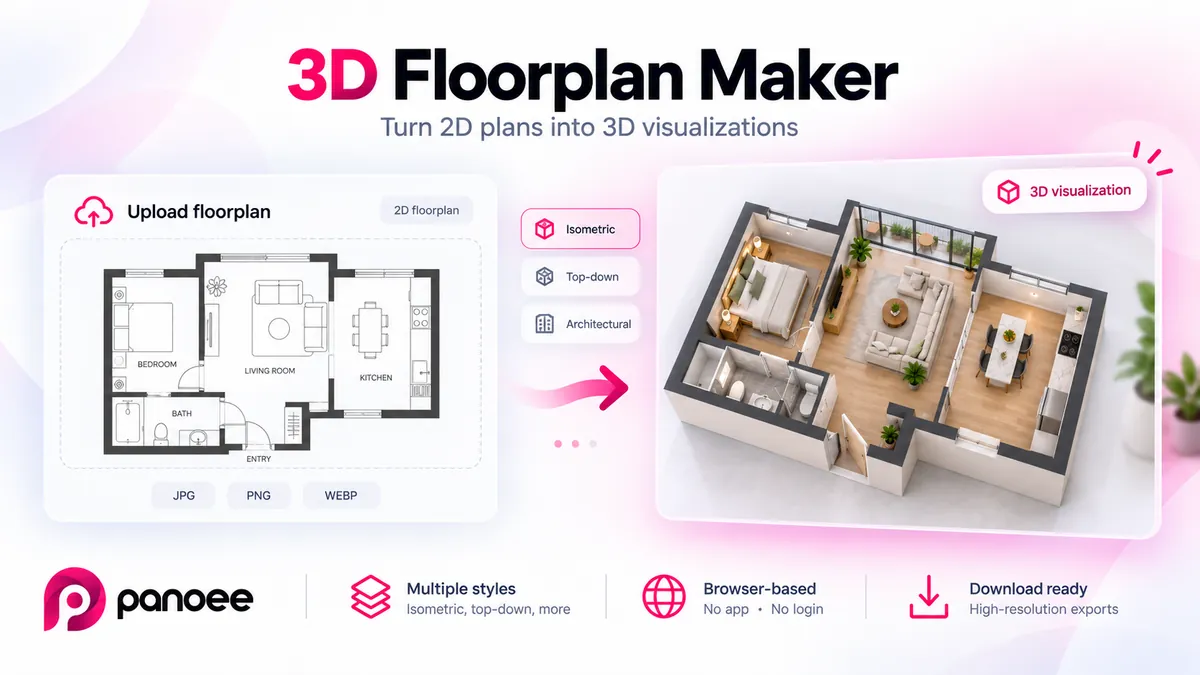
A 3D floorplan maker takes a 2D plan image (JPEG, PNG, or WebP) and restyles it as a 3D-looking view. A floor plan itself is a scale drawing of a level — see Floor plan (Wikipedia). This page is the Panoee tool for that workflow: generate here after sign-in. The same generator is also available in Panoee Studio Floorplan Maker.
It is not CAD. It does not replace measured drawings, BIM, or a walkthrough tour with hotspots.
Key takeaways
- Public name on this URL is 3D Floorplan Maker (not Floorplan Styler)
- You start from a 2D plan image — JPEG, PNG, or WebP
- Sign in with a Pro or trial plan, then Generate on this page
- Use it for marketing and client previews, not construction documents
- Pair a restyled plan with a 360 panorama viewer when you also have a photo of the space
Who it is for
- Agents and hosts who already have a 2D plan and need a clearer picture for a listing
- Tour authors who want a dollhouse or isometric still next to Panoee virtual tour software
- Designers who want a sketch, blueprint, or clay look from one source image
Skip it if you need to draft walls, set door schedules, or export DWG. Use CAD or a measured survey for that.
3D floorplan maker vs CAD
CAD and BIM build geometry: walls have thickness, doors have IDs, rooms have areas. A 3D floorplan maker restyles a picture of a plan. Furniture and lighting in the output are a visualization choice, not a guaranteed inventory of the property.
Keep the CAD file as the source of truth. Use this tool when you need a still that non-technical viewers understand faster than a line drawing. A pretty isometric does not make a wall legal, and a clay render does not prove a room is the size printed on a permit set.
If a client asks “can I build from this?”, send them back to the measured drawing. If they ask “can I see how the rooms sit together?”, a restyled plan is the faster answer.
How to Use
-
Prepare a 2D plan
- Use a high-contrast JPEG, PNG, or WebP. Dark walls on a light background work best. Crop extra margins, watermarks, and photos of the street so the plan fills the frame.
-
Review style options
- Output type (3D floorplan, isometric, dollhouse, blueprint, sketch).
- Perspective (top-down, isometric, angled, exploded, eye-level).
- Render style, color scheme, detail, and background.
-
Generate on this page
- Sign in if prompted. A Pro or trial plan is required. Generate runs here and shows the still in the result panel.
-
Download and place
- Save the still for a listing, deck, or tour cover. Check it against the real rooms before you publish.
Prepare the 2D source
The sample tips on this page already say a clear, high-contrast floorplan works best. That is the whole input contract: one image that already shows walls, openings, and room shapes.
Prefer a clean export from CAD or a scanned print with even lighting. Avoid a photo of a whiteboard taken at an angle. If room names are important, keep them readable on the source — you can also request labels as an extra option, but the generator cannot invent a correct room name that was never on the plan.
Do not expect a phone snap of furniture in an empty lot to become a floor plan. This is a restyle step, not a survey.
Styles you can request
The controls list the looks this generator can target:
- Output: 3D floorplan, isometric, dollhouse cutaway, interior mockup, hand-drawn sketch, blueprint/CAD style, game-map
- Perspective: top-down, isometric, angled, exploded levels, eye-level
- Render: photorealistic, minimal line, watercolor, clay, wireframe, cartoon
- Extras: room labels, furniture, plants, daylight shadows, Sims/RPG or CAD stylization
Treat these as style targets, not a promise that every source plan will reconstruct furniture automatically. Photorealistic in the list means a render look, not a claim that the page runs an automatic AI walkthrough of the property.
This page vs Studio
Upload, style, and Generate run on this page. Sign in with the same Panoee account you use in Studio. Free accounts see an upgrade prompt instead of a Studio redirect.
The same job also exists in Studio next to Media. Use this URL when you want the restyle without opening the dashboard. Use Studio when you already have the plan in your media library.
Limits of the free landing workflow
- Generate requires a signed-in Pro or trial plan. Guests can pick styles, then sign in.
- Source must already be a plan. A blurry phone photo of a napkin sketch often fails.
- Output is a still image, not an editable 3D model you can orbit like a BIM viewer.
- Scale in the picture should match the source drawing. Do not treat decorative furniture as a measured takeoff.
- This page is not virtual tour software. A restyled plan does not add hotspots or scene links.
FAQ
Is this the same as Floorplan Styler?
The public name for /3d-floorplan-maker is 3D Floorplan Maker. Older copy used Floorplan Styler for the same URL.
Does this page generate the 3D view in the browser? Yes. Sign in with a Pro or trial plan, upload a JPEG, PNG, or WebP plan, then Generate on this page.
Do I need CAD skills? No. You need a 2D plan image. You do not draft walls here.
Which files can I start from? JPEG, PNG, or WebP.
Is it a replacement for CAD? No. Keep CAD for dimensions and permits. Use this for a client-facing still.
Can I use it with a 360 tour? Yes. Restyle the plan, then attach it next to panoramas in a Panoee tour.
Summary
A 3D floorplan maker restyles a 2D plan so rooms read faster than a raw CAD export. On this page you upload a clear plan, pick dollhouse or isometric or blueprint, generate after sign-in, then place the still on a listing or tour — not on a construction set.