
- The Problem: Standard photo viewers display 360° photos as distorted, flat “equirectangular” images (2:1 ratio) rather than immersive spheres.
- The Solution: An Online 360 Viewer utilizes WebGL technology to wrap your flat image onto a virtual sphere directly in your browser.
- Top Method: Panoee’s 360 Panorama Viewer allows for instant, drag-and-drop viewing with no app installation and no sign-up required for previewing.
- Key Benefit: View, inspect, and share panoramas on PC, Mac, or mobile instantly without heavy software or privacy risks.
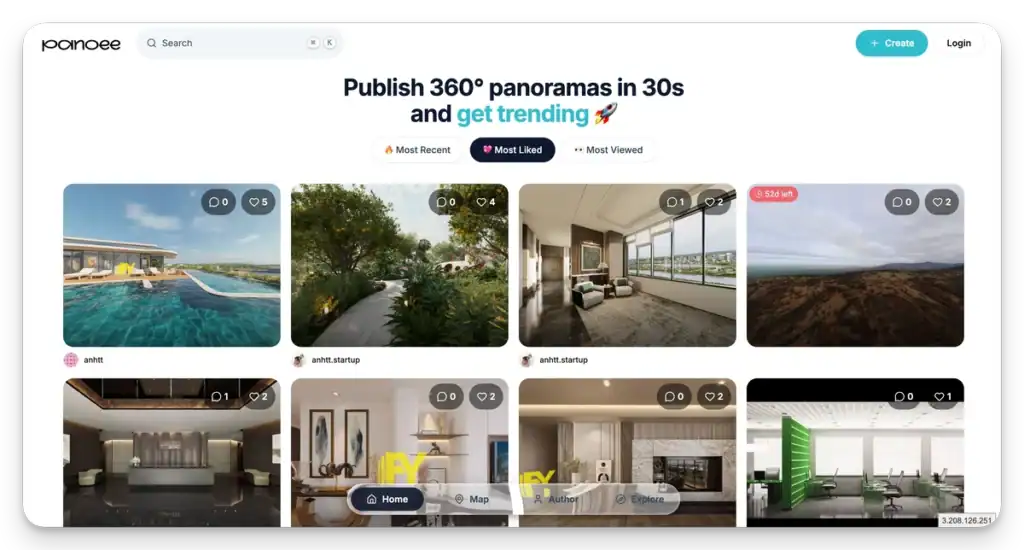
- New Features: we built a better place for you to quickly preview & publish 360° with super ease. Try it here Panoee.live 🚀
What is a 360 Panorama Viewer?
Direct Answer: A 360 panorama viewer (or 360 photo viewer) is a specialized software application that maps flat, distorted panoramic images onto a 3D sphere. It places the user’s viewpoint inside that sphere, allowing them to look up, down, and all around (360° x 180°) using a mouse or touch gestures, creating an immersive virtual reality experience.
While standard image viewers treat a 360 photo like a regular 2D map, a dedicated pano viewer interprets the image’s geometry-typically Equirectangular Projection-to render the scene correctly.
Why Do My 360 Photos Look Flat?
If you open a 360° photo file (usually a .jpg) on your standard computer or phone gallery, it often looks like a stretched, warped map of the world. This is because raw 360 data is stored as an Equirectangular Projection.
Think of it like peeling the skin off an orange and flattening it onto a table.
- The Geometry: To capture a full sphere on a flat surface, the image must have a precise aspect ratio of 2:1 (width is exactly twice the height).
- The Distortion: The top and bottom (Zenith and Nadir) are stretched infinitely, while the center (horizon) remains relatively normal.
Without a specialized equirectangular viewer, your device doesn’t know to “wrap” this skin back into a ball. This is why you need a browser-based tool to simulate that 3D geometry instantly.
How to View 360 Photos Online (No App Needed)
With many years of experience developing virtual tour solutions, we at Panoee understand that sometimes you just want to check a file quickly without installing 500MB of software.
Below is the fastest method to view your panoramas using our browser-based tool. This method works on PC, Mac, iOS, and Android.
Step 1: Access the Online Viewer and Upload
Navigate to the 360 Panorama Viewer tool. You do not need to create an account to preview your image.
- Drag & Drop: Simply drag your .jpg or .png file into the upload box.
- Select File: Alternatively, click the upload button to browse your device.
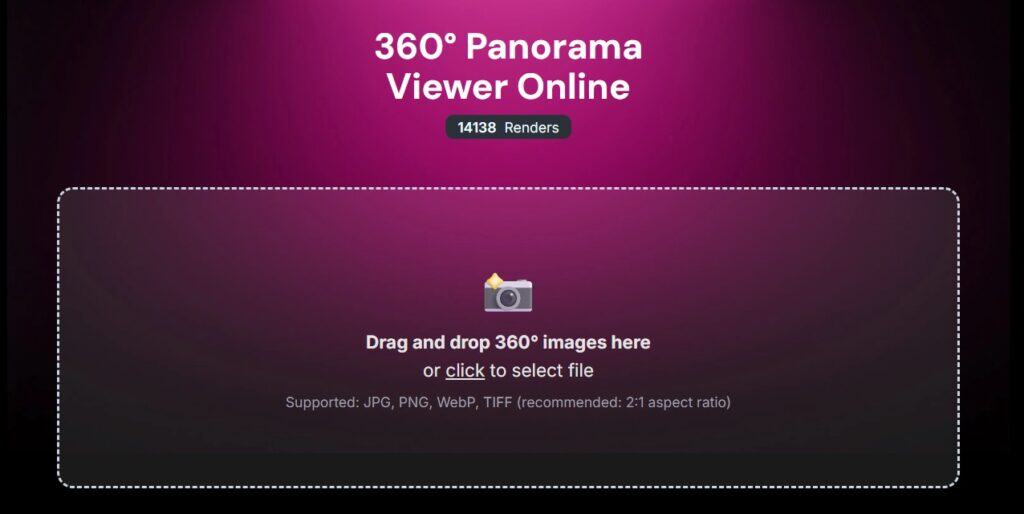
Note: Ensure your image is a standard Equirectangular format (2:1 ratio) for the best results.
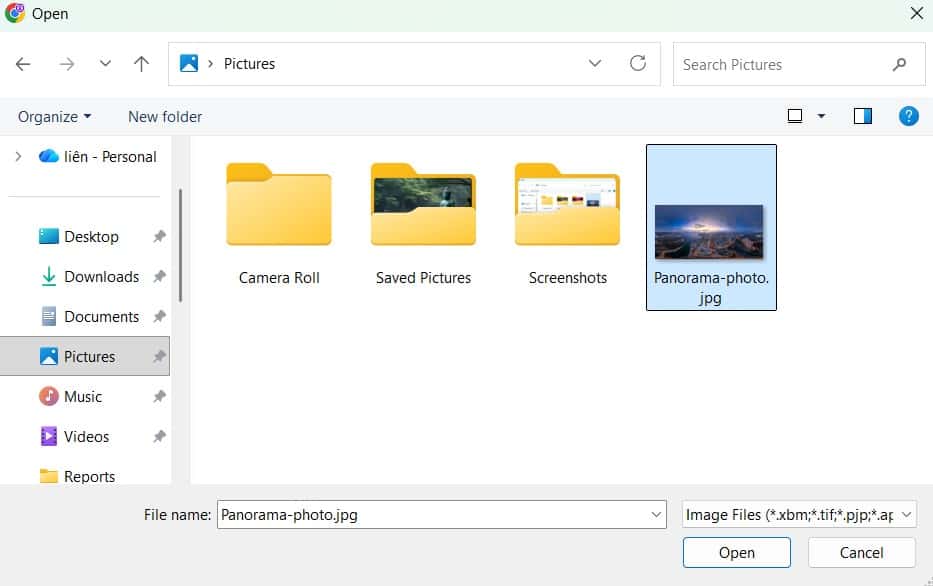
Step 2: Explore Your Panorama
Once uploaded, the viewer instantly renders the image.
- Rotate: Click and drag (or swipe) to look around the scene.
- Zoom: Use the scroll wheel (or pinch) to inspect details. This is crucial for photographers checking stitching quality or sharpness.
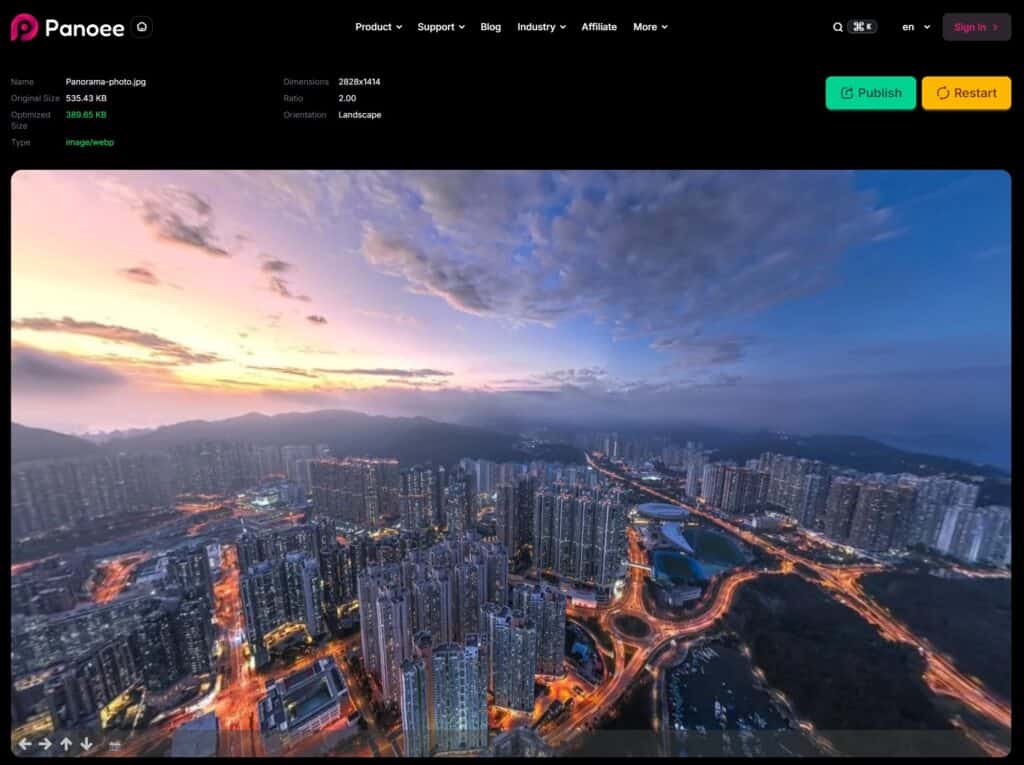
Step 3: Share Your 360 Photo (Optional)
If you want to send this view to a client or friend without sending them the heavy file:
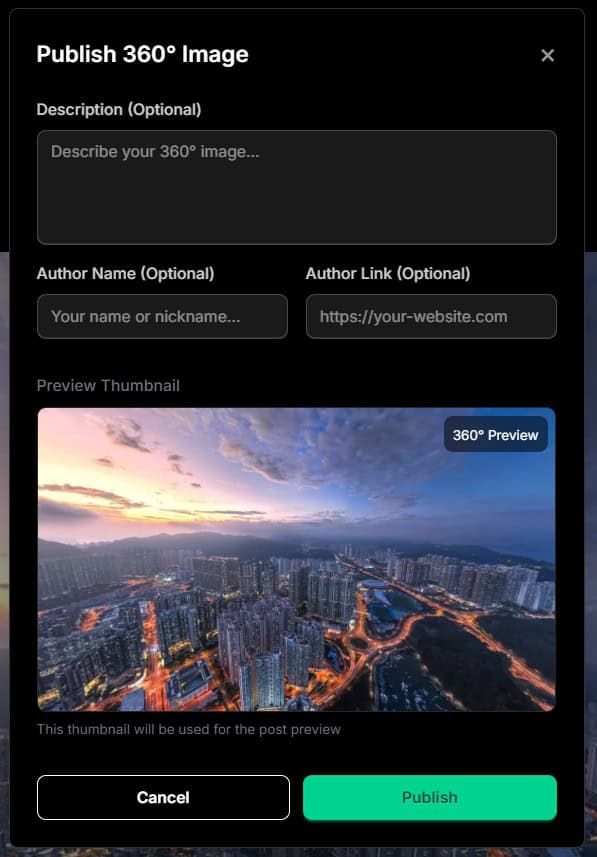
- Click the “Publish” and “Share” button.
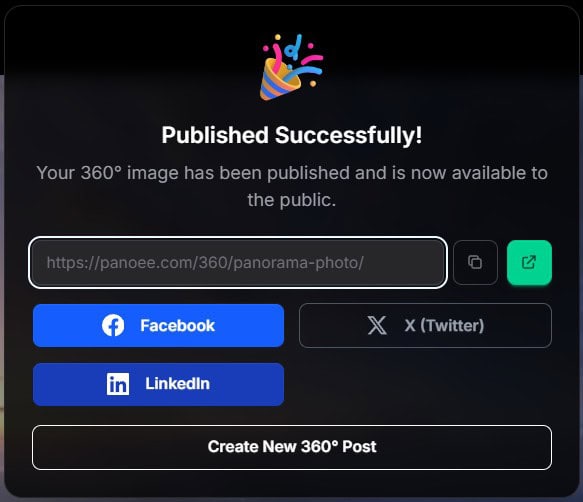
- The tool will upload the image to the cloud and generate a unique URL.
- Copy this link and send it via email, WhatsApp, or Messenger. The recipient can view it instantly in their browser.
Pro Tip: For professional photographers creating full virtual tours with hotspots and floorplans, check out our guide on How to create Virtual Tours in 4 steps.
Comparison: Online Viewer vs. Desktop Software vs. Social Media
Not all viewing methods are created equal. Here is how a browser-based solution compares to other common methods.
| Feature | Panoee Online Viewer | Desktop Software (e.g., FSPViewer) | Social Media (Facebook) |
| Installation | None (Browser-based) | Required (Install .exe/.dmg) | None (Web/App) |
| Privacy | High (Local processing first) | High (Offline) | Low (Public/Friends only) |
| Speed | Instant | Fast (after install) | Slow (Upload & Process) |
| Quality | Original Resolution (up to 8K+) | Original | Compressed heavily |
| Sharing | One-click URL | Difficult (must send file) | Restricted to platform users |
| Cost | Free | Free or Paid | Free (Data mining) |
For most users who need to view 360 photos on PC quickly or share a preview, the online viewer offers the best balance of speed and quality.
Advanced Tips for 360 Panorama Optimization
To ensure your images look professional in any online 360 viewer, pay attention to these technical details.
1. The Golden Aspect Ratio
As mentioned, the standard for 360 metadata is a 2:1 ratio.
- Example: If your width is 6000 pixels, your height must be 3000 pixels.
- If your image is 6000 x 4000, the viewer will likely display a black bar or distort the horizon. You may need to crop it.
2. Fixing the “Nadir” (The Tripod Hole)
When you shoot with a 360 camera, the tripod is often visible at the very bottom of the image (the Nadir). This breaks the immersion.
- The Fix: You can patch this area using a logo or a generated patch. We offer a dedicated Nadir Fixer tool to help you cover this area seamlessly before you share your tour.
3. File Size vs. Loading Speed
While our viewer supports high resolutions (even 16K+), sharing massive files (e.g., 50MB+) via a link can cause slow loading times for your clients on mobile data.
- Recommendation: Use 360 Panorama Optimization techniques to compress your JPGs without visible quality loss. A file size between 5MB and 10MB is usually the “sweet spot” for web viewing.
Explore more exciting things:
- Free Unlimited 360 Photo Hosting
- Top 5 Free 360 Photo Viewers for Windows & Mac
- How to View 360 Photos on iPhone & Android
- How to Embed Interactive 360 Panoramas on Your Website
- How to Upload and Share 360 Photos on Facebook
- How to Upload 360 Photos to Google Maps
- Google Street View App Discontinued: Top 5 Best Alternatives
- Kuula vs. Panoee.live: Which Free 360 Hosting is Better
Troubleshooting Common Issues
“My image is not spinning, it’s just flat.”
- Cause: You are likely opening the file in Windows Photo Viewer or Apple Preview, or the file is missing 360 metadata (XMP data).
- Fix: Upload it to the 360 Panorama Viewer. Our tool detects the aspect ratio and forces the 360 projection, even if metadata is missing.
“The image looks low quality after upload.”
- Cause: Some social platforms compress images aggressively.
- Fix: Panoee uses multi-resolution rendering. We preserve your original quality. If you want to showcase high-end work, such as art, see how we handle Panoee gallery features.
“I see a black line or seam in the image.”
- Cause: This is a stitching error from the camera or software.
- Fix: You may need to re-stitch the photos using your camera’s software or use a Kuula alternative like Panoee to edit the view.
Frequently Asked Questions (FAQ)
1. Can I view 360 photos on PC without installing software? Yes. You can use a browser-based pano viewer like Panoee. Simply drag and drop your image into the browser, and it will render the 360 view using WebGL technology immediately.
2. What is the best free 360 photo viewer? For “no-install” usage, Panoee is a top choice because it requires no sign-up to preview. For advanced project creation with hotspots, Panoee offers a comprehensive free tier.
3. How do I send a 360 photo to a client? Instead of sending a large file that they cannot open, upload your photo to Panoee, generate a link, and email that URL. The client can click and view the 360 & 3D Virtual Tours on their phone or computer instantly.
4. Can I make a floorplan from my 360 photos? Yes. If you are in real estate, viewing the photo is just step one. You can use our 3D Floorplan Maker to convert those panoramas into a navigable layout.
5. Is there a community for sharing 360 photos? Absolutely. If you want to see what others are creating or get feedback on your work, join the 360 Photo Community at Panoee.live.
6. Can I view virtual museum tours with this? Yes, the technology used in our viewer is the same used for high-end cultural preservation. Check out our list of 20 Best Virtual Museum Tours for inspiration.
Next Step for You: Do you have a batch of 360 photos sitting on your hard drive? Click here to open the 360 Panorama Viewer and see them in their full glory right now-no sign-up required.