
Auto Rotate helps your Panoee virtual tour keep moving on its own. When enabled, the tour waits for a short period of inactivity, then starts rotating smoothly so viewers can continue exploring the 360 scene without manual navigation.
Steps
-
Open the Project Editor
From your Panoee dashboard, open the virtual tour project you want to edit.
-
Open Setting
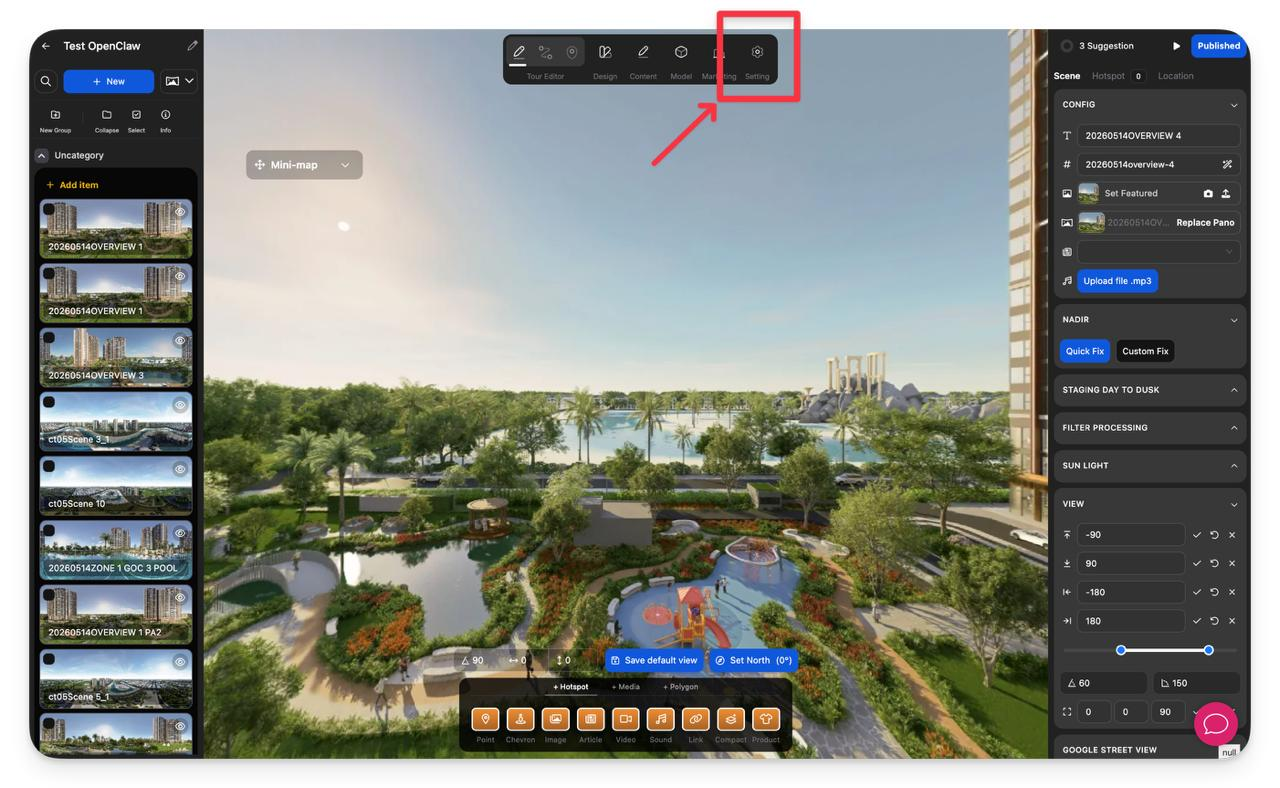
In the top toolbar, click the Setting icon.
-
Select Effect
In the left sidebar, click Effect.
-
Enable Auto Rotate
In the Auto Rotate section, switch the toggle to Enabled.
-
Adjust the Auto Rotate settings
Set the timing and movement values for the rotation.
Setting Description Wait time (Second) The number of seconds Panoee waits before auto rotation starts. Speed (deg/s) The rotation speed of the virtual tour. Accelerate (Second) The time Panoee uses to smoothly ramp up from stillness to the selected rotation speed. 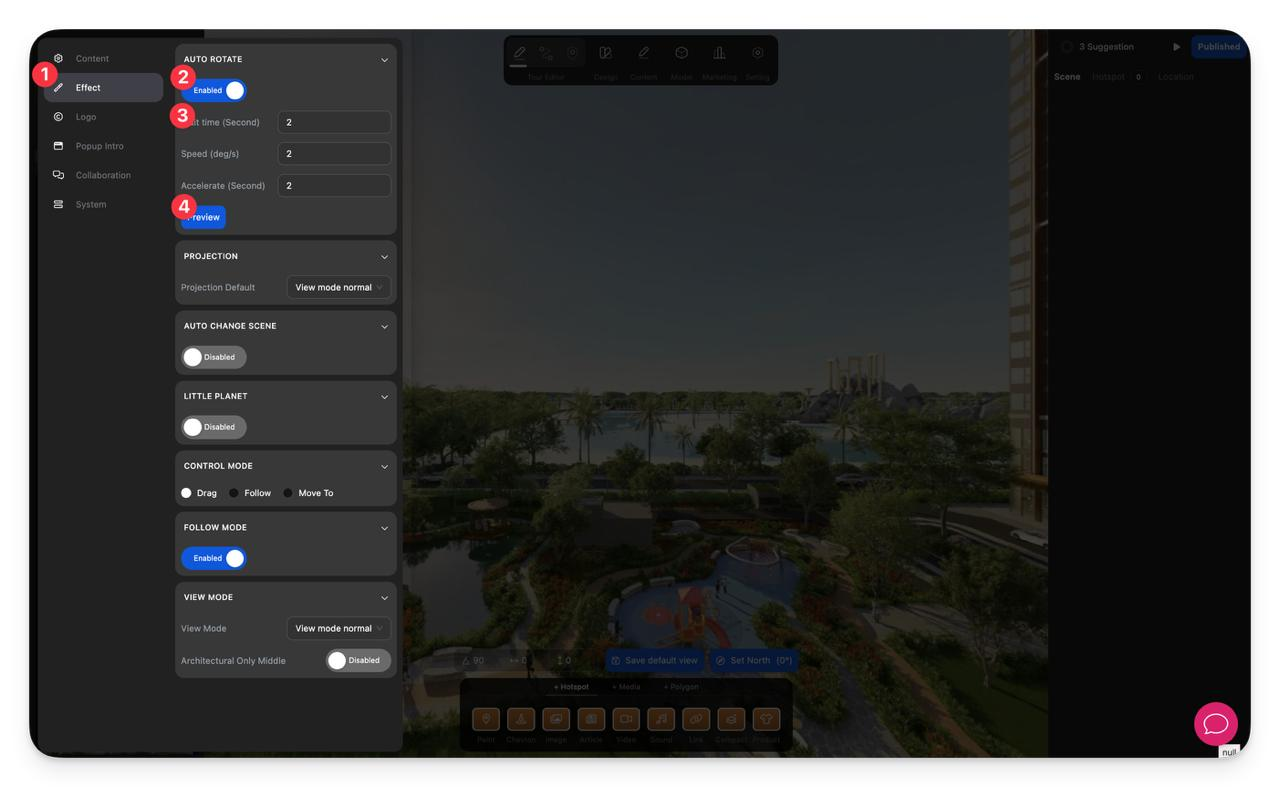
-
Preview the result
Click Preview to check how the virtual tour rotates before viewers see it.
Notes
- A shorter wait time makes Auto Rotate start sooner after the viewer stops interacting.
- A higher speed value makes the tour rotate faster.
- Use a moderate speed for real estate, hospitality, and showroom tours so the movement feels smooth and comfortable.
- Auto Rotate works best when the scene has a clear default view and stable north/view settings.