

Quick answer: Google Maps 360 photo checker is a free browser tool that tests a 360 photo against the Photo Sphere requirements on Google's help page: a 2:1 ratio, at least 3,840 × 1,920 pixels, no more than 75 MB, and Photo Sphere (GPano) metadata with a heading. It fixes the metadata, can add a GPS position, and saves a JPEG. Your photo is never uploaded.
Last updated: October 27, 2026
Key takeaways
- Google's help page asks for 7.5 MP or larger (3,840 × 1,920 px), a 2:1 ratio and a file of 75 MB or less.
- The Street View spherical metadata spec lists seven required GPano fields. The heading is "not required, but is required for display on Google Maps".
- The tool checks all of these, fixes the metadata, and re-runs the checklist on the file you download.
- It never stretches a photo that is not 2:1 and never upscales a small one.
- Stitching errors, blur and horizon gaps are on your side to check. A tool cannot judge them.
Google's requirements and what the tool checks
| Requirement | Official value | Source | What the tool checks |
|---|---|---|---|
| Resolution | 7.5 MP or larger (3,840 × 1,920 px) | Google Maps Help | Width and height in pixels |
| Aspect ratio | 2:1 | Google Maps Help | Width equals twice the height, within 1 px |
| File size | No more than 75 MB | Google Maps Help | File size, shown in MB |
| Full 360° with Photo Sphere XMP | Required for the Street View Publish API | startUpload reference | GPano present, and full-width values |
| GPano fields | ProjectionType (equirectangular only) and six size and crop fields | Spherical metadata spec | All seven fields present and consistent with the image size |
| Heading | PoseHeadingDegrees, 0 up to under 360, needed for display on Google Maps | Spherical metadata spec | Heading present and in range |
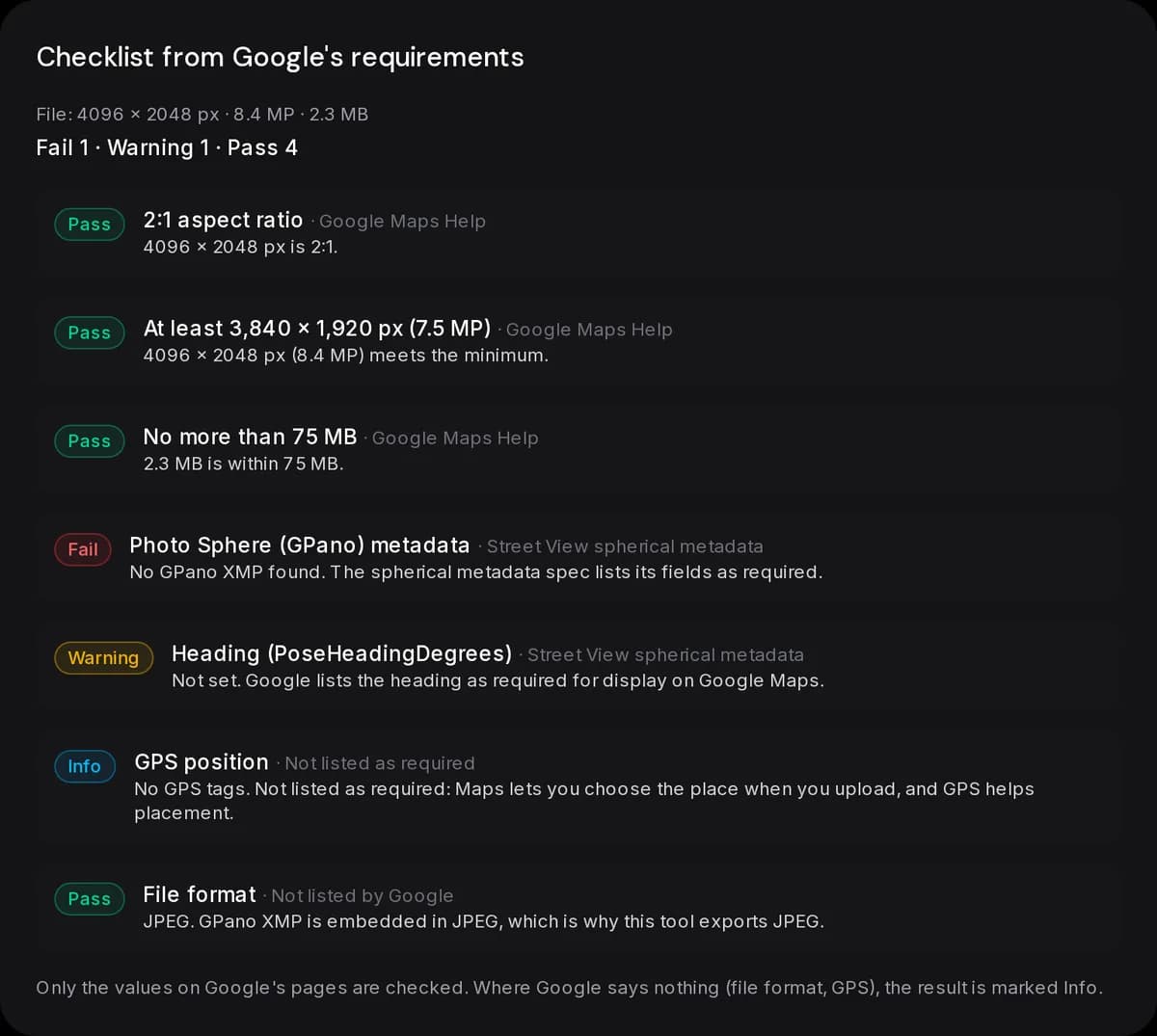
| Horizon, stitching, sharpness, nadir | No gaps, no major stitching errors, sharp, no distracting effects | Google Maps Help | Not checked. Listed for you to review |
Google's pages do not list accepted file formats, and they do not say GPS is required. The tool exports JPEG because the GPano XMP is embedded in JPEG. GPS is reported as information only: Maps lets you choose the place when you upload, and a GPS position helps placement.
How to check a 360 photo for Google Maps
- Drop a JPG, PNG or WebP into the uploader. The checklist shows pass, fail or warning for each item, with the reason.
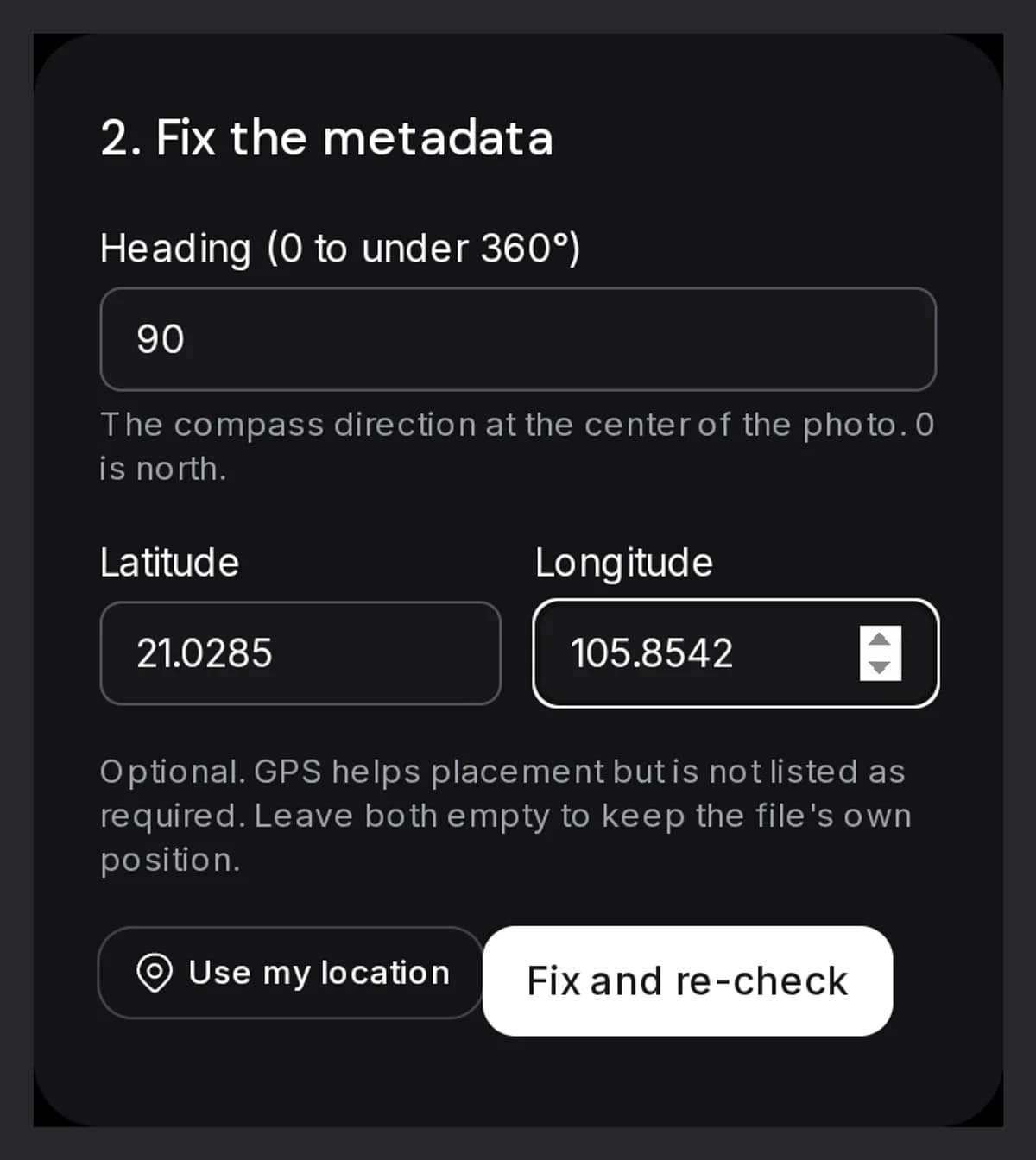
- Enter the heading in degrees, from 0 up to under 360. Add a latitude and longitude if you want, or press Use my location.
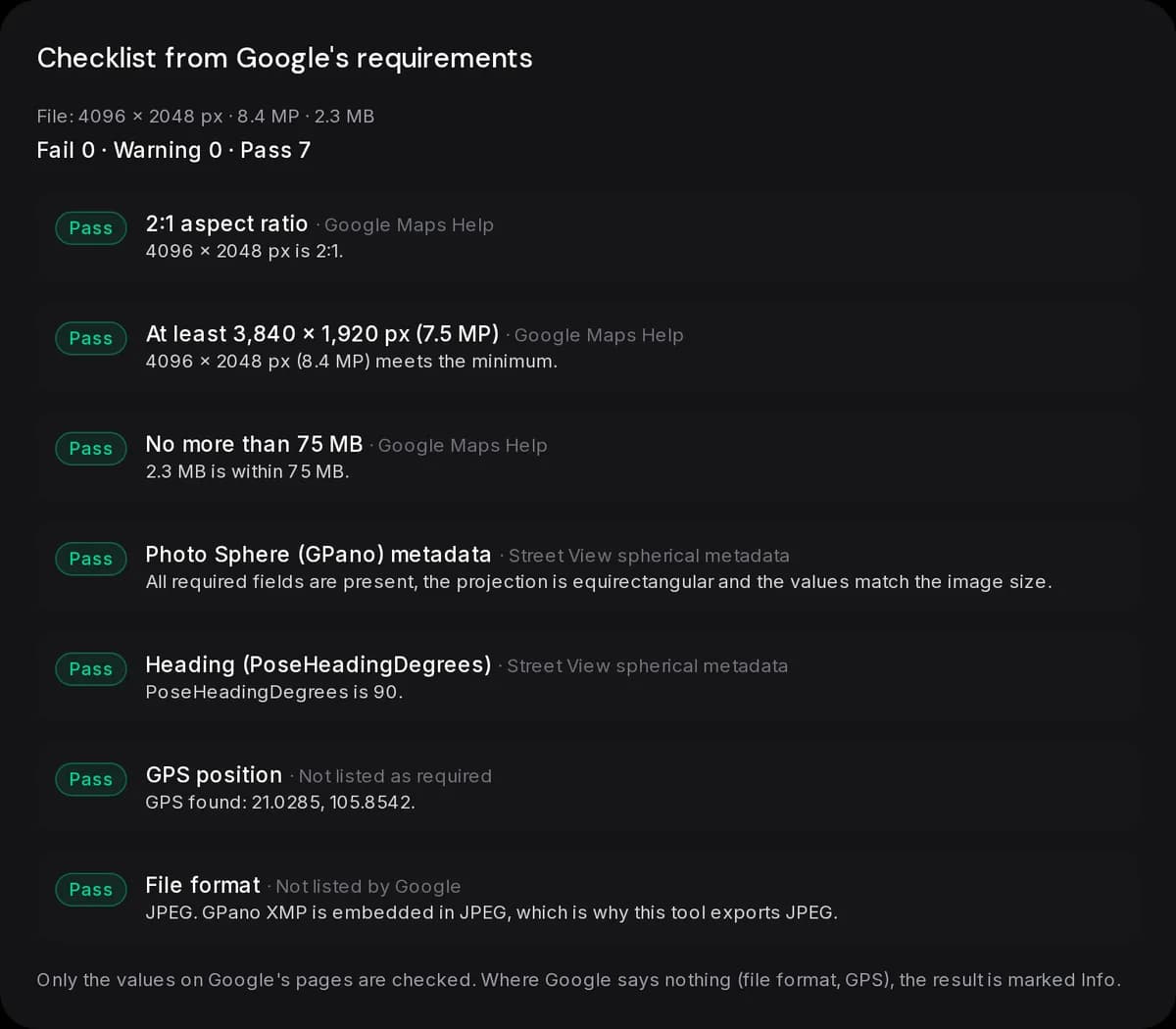
- Click Fix and re-check. The tool writes the Photo Sphere tags, sets the heading and GPS, and runs the checklist again on the new file.
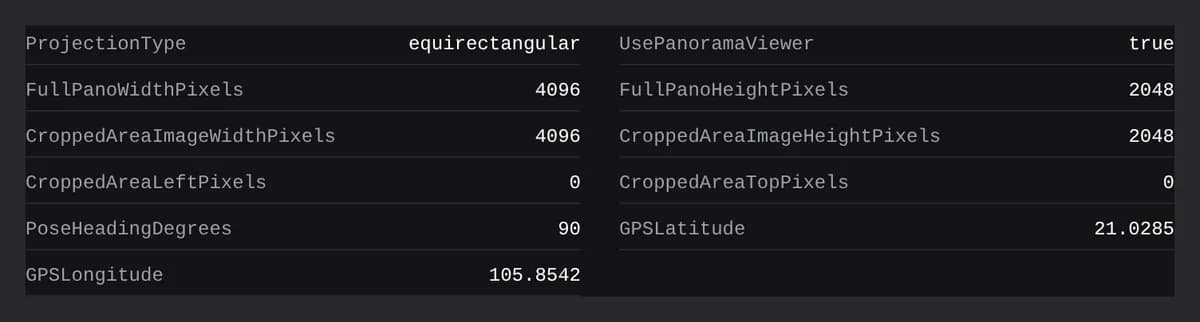
- Read the tags back, click Preview in 360° to look around, then click Download fixed JPEG.
- Look through the manual list: horizon, stitching, sharpness, nadir, faces and plates.
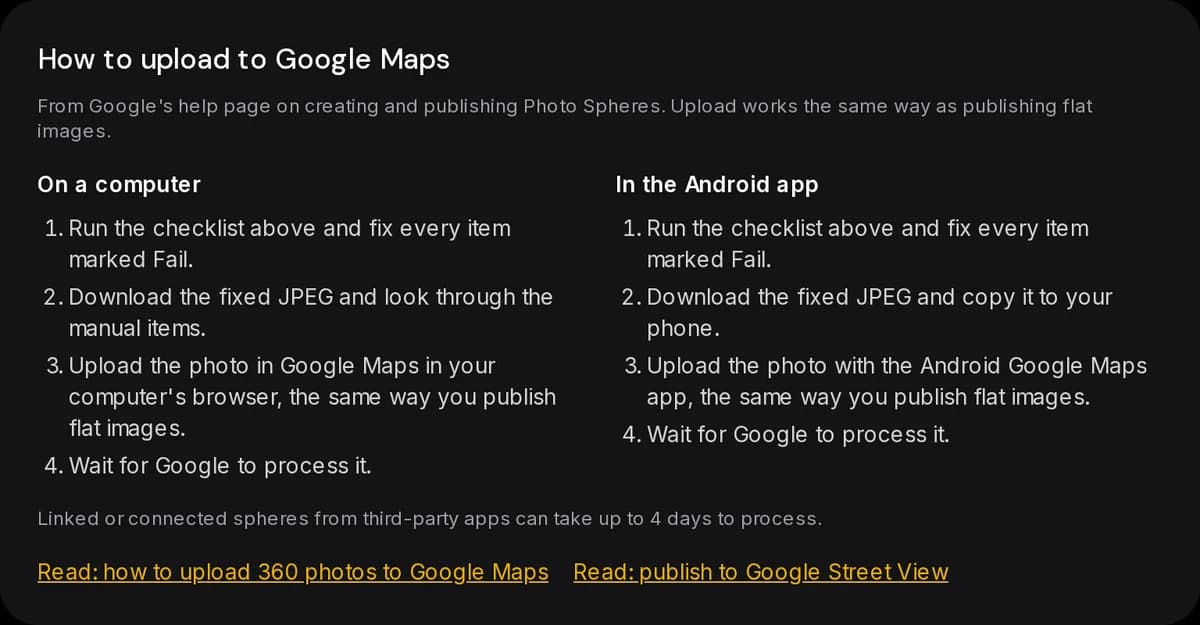
How to upload to Google Maps
Google's help page says to publish a Photo Sphere the same way you publish flat images, with the Android Google Maps app or in your computer's browser.
- On a computer: fix the file here, then upload it in Google Maps in your browser, the same way you publish flat images.
- In the Android app: copy the fixed JPEG to your phone and upload it with the Google Maps app, the same way you publish flat images.
Google adds that linked or connected spheres from third-party apps can take up to 4 days to process. For a longer walkthrough, read how to upload 360 photos to Google Maps and publishing to Google Street View.
What the fix does and does not do
The fix writes ProjectionType=equirectangular, UsePanoramaViewer=True, the full-sphere size and crop values, and the heading you set. If you give a position, it writes GPS latitude and longitude to EXIF and keeps the other EXIF tags of a JPEG.
A PNG or WebP is re-encoded to JPEG. A JPEG over 75 MB is re-encoded at a lower quality, stepping down until it fits. You can also choose a smaller maximum width, but never below 3,840 × 1,920, and the result stays 2:1. A JPEG that is already small enough is rewritten without touching its pixels.
When not to use it
- The photo is not 2:1. A phone panorama or wide photo is not a Photo Sphere. The tool will not stretch it. Pad it with the panorama to 360 converter first, and know that the padded area is not real scenery.
- You need connected tours. This tool checks and fixes one photo. For tours with several linked scenes, use Panoee or another tour tool.
- You want it to judge quality. The tool cannot see stitching errors, blur or gaps. Look at the photo in the 360 panorama viewer online.
Common mistakes
- Not 2:1. A 4:1 sweep or a cropped image fails the ratio check.
- Under 7.5 MP. Below 3,840 × 1,920 fails. Upscaling a small file adds pixels but no detail, so the tool does not do it.
- Missing GPano or heading. Without Photo Sphere tags the file is a flat picture. Google's spec says the heading is required for display on Google Maps.
- Over 75 MB. Re-encode at a lower quality or use 360 panorama optimization.
- An editor stripped the XMP. Some apps drop the tags on save. Check again after any edit, or repair the tags with the 360 EXIF Fixer.
- A tilted horizon. Level the photo first with the level 360 panorama tool.
Sources
- Google Maps Help: Create & publish Photo Spheres to Google Maps
- Street View Publish API: photo.startUpload
- Google: Photo Sphere XMP (spherical metadata)
- Google Maps contribution policy: tips for photos and videos
Google's contribution tips add that a 360 photo should wrap 360° without gaps in the horizon (minor gaps at the top and bottom are fine), that superimposed content should stay in the top or bottom 25%, that blurring faces and license plates helps privacy, and that you should use media you captured at the location.
FAQ
How do I upload a 360 photo on Google Maps?
Publish it the same way you publish flat images, with the Android Google Maps app or in your computer's browser. Before that, check that it is 2:1, at least 3,840 × 1,920 px, 75 MB or less, and has Photo Sphere metadata. This tool checks those values.
How do I add a 360 view in Google Maps?
Upload a Photo Sphere. It must be a full 360° photo with Photo Sphere tags. Run the file through the checker, fix what fails, then upload the fixed JPEG.
What are the Google Maps Photo Sphere requirements?
Google's help page lists 7.5 MP or larger (3,840 × 1,920 px), a 2:1 aspect ratio and a file of 75 MB or less. It also asks for no gaps around the horizon, no significant stitching errors, enough detail in light and dark areas, a sharp image and no distracting effects in the nadir.
Can I upload 360 photos to Google Maps?
Yes. Google's help page describes how to create and publish Photo Spheres. Linked or connected spheres from third-party apps can take up to 4 days to process.
How do I upload a photo sphere in Google Maps?
Use the Android Google Maps app or your computer's browser, the same way you publish flat images. If the photo is a plain JPEG without tags, fix it here first so it carries the Photo Sphere metadata.
How do I upload 360 to Google Street View?
The Street View Publish API says the photo must be a full 360° horizontally and must include Photo Sphere XMP metadata. This tool writes those tags. See publishing to Google Street View for the steps.
Is GPS required for Google Maps?
Google's pages do not list it as required. Maps lets you choose the place when you upload, and a GPS position helps placement, so the checker reports GPS as information only.
Which file format does Google Maps accept?
Google's help page does not list formats. This tool exports JPEG because the Photo Sphere XMP is embedded in JPEG.