Quick answer: Panorama to 360 converter is a free browser tool that puts a panorama or wide photo on a 2:1 equirectangular canvas, fills the empty area with blur, a mirror or a color, and saves a JPEG with Photo Sphere (GPano) tags. Your image is never uploaded.
Last updated: October 27, 2026
Key takeaways
- The tool pads your image to a 2:1 canvas. It does not capture or invent the missing scenery.
- It estimates the field of view (FOV) from the aspect ratio only, so check it before you export.
- Blur, mirror and solid color are the three fill modes. Pick one that suits the picture.
- The JPEG gets Photo Sphere tags, the format 360 viewers read, so the file can open as 360.
- Everything runs in your browser. Nothing is uploaded.
What is a panorama to 360 converter?
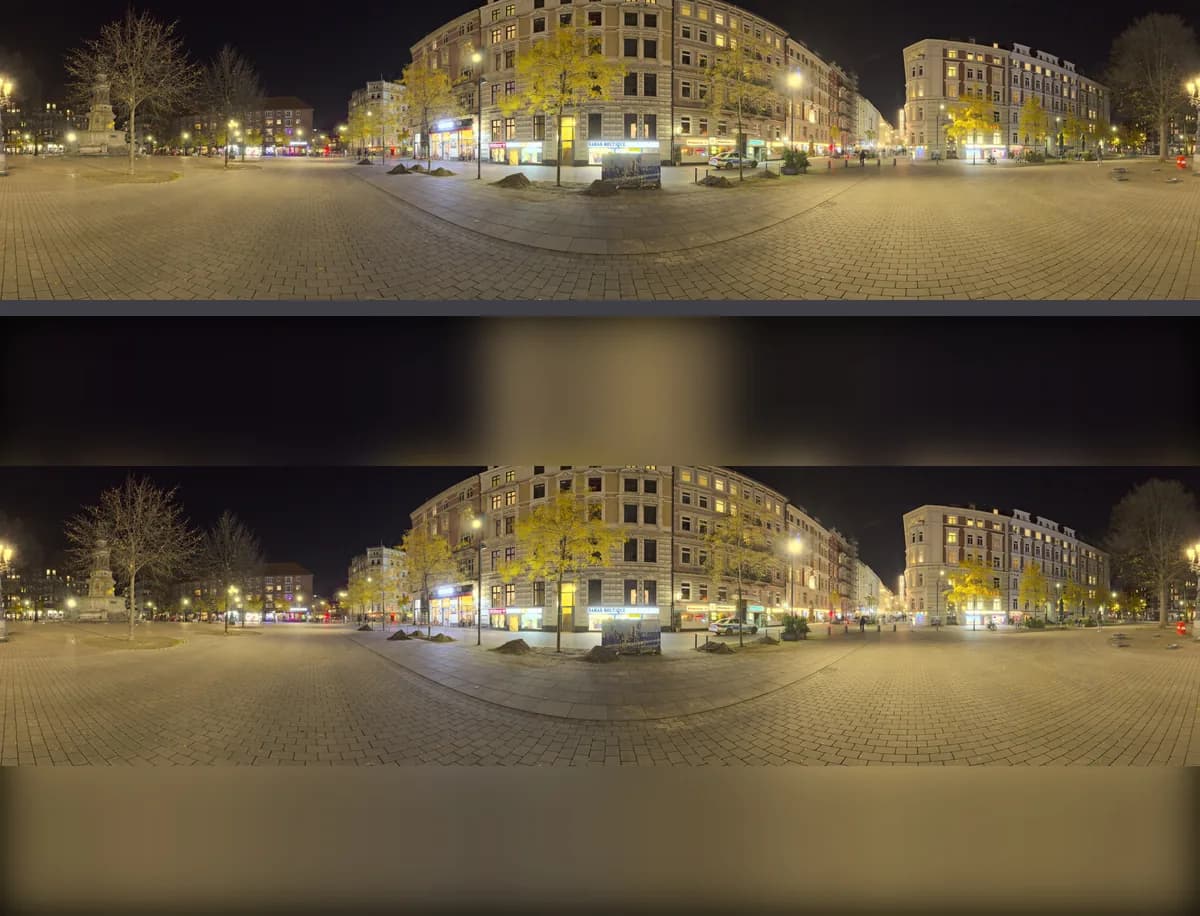
A panorama to 360 converter changes the shape of an image so 360° viewers will accept it. A viewer expects an equirectangular picture that is twice as wide as it is tall. A phone sweep or a wide photo is not, so it shows as a flat strip. This tool places your image on a 2:1 canvas, pads the rest, and adds the Photo Sphere metadata that 360 viewers read.
How to convert an image to a 360 view
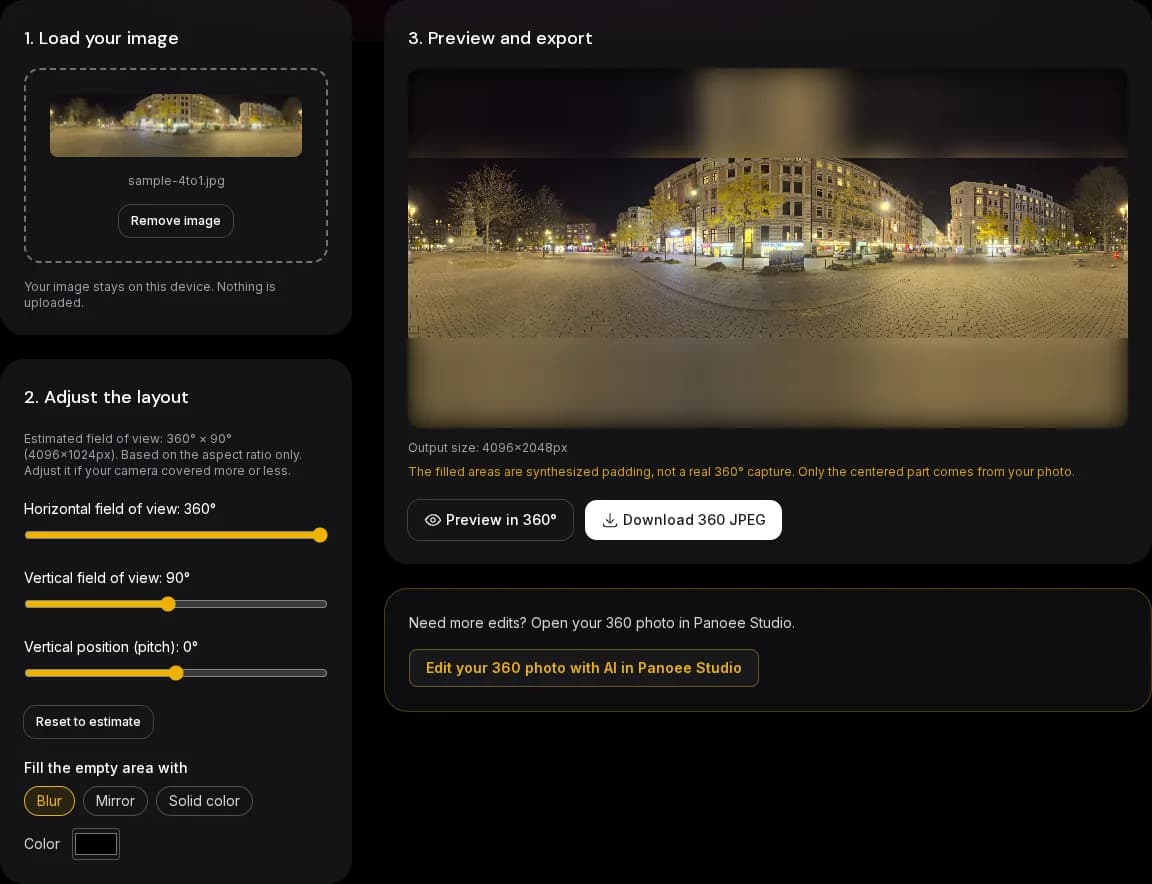
- Drop a JPG, PNG or WebP into the uploader. The estimated field of view appears.
- Check the horizontal and vertical field of view. Move the vertical position if the horizon is not in the middle of your photo.
- Choose how to fill the empty area: blur, mirror or a solid color.
- Click Preview in 360° to look around the result.
- Click Download 360 JPEG.
How is the field of view estimated?
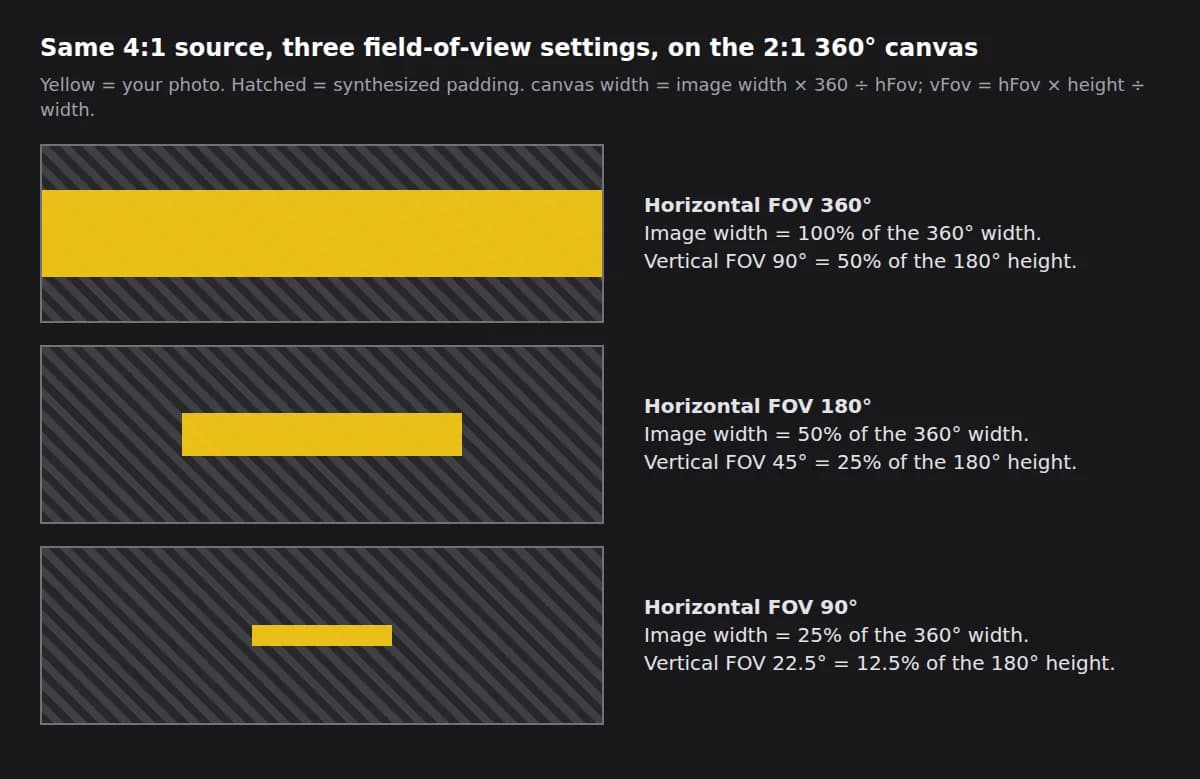
The tool only knows the pixel size, so it guesses. An image that is at least 3.5 times wider than it is tall is treated as a full 360° sweep, which is typical for phone panorama modes. Narrower images are scaled in proportion, and the vertical angle keeps square pixels (horizontal angle × height ÷ width). If your camera covered a different angle, change the sliders; the estimate is a starting point, not a measurement. The horizontal range is 90° to 360°.
What do the fill modes do?
| Fill mode | Looks like | Best for |
|---|---|---|
| Blur | Stretched edge rows and columns, blurred. Smooth and calm. | Skies, ceilings and floors you do not want to draw attention to |
| Mirror | Your image reflected around its edges. Keeps texture but repeats content. | Textured scenes where a smooth blur looks flat |
| Solid color | One flat color you choose. | Making the padding obvious, or matching a page background |

Is the result a real 360° photo?
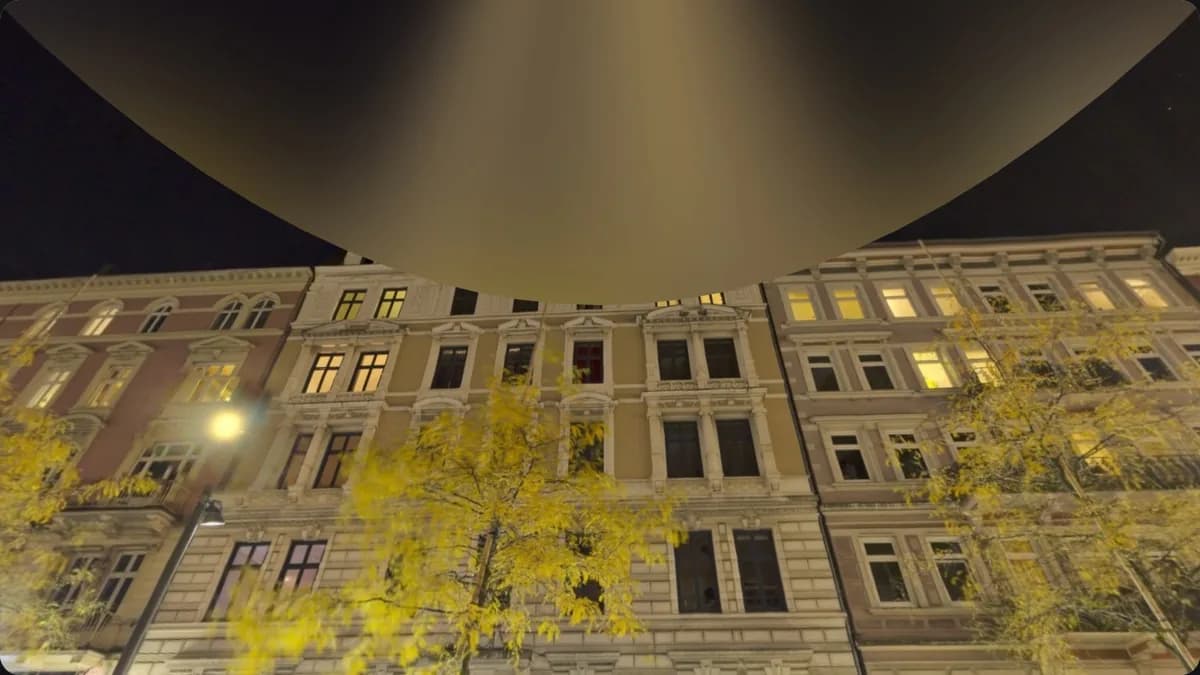
No, and it matters. Only the centered part comes from your camera. Everything else is synthesized padding. Looking up or down in the viewer shows the fill, not the real scene. That is fine for sharing a wide panorama in a 360 viewer or on Facebook, but it is not a replacement for a stitched capture of the whole sphere.
When to use it, and when to use a 360 camera instead
Use the converter when you already have a wide photo or a phone panorama and want to share it in a 360 viewer, or when you want to test how a wide image looks on the sphere.
Do not use it for virtual tours, real estate or anything where viewers must see the real floor and ceiling. A 360 camera, or a stitched capture of the whole sphere, is the right tool there. If you already have a full equirectangular file that only needs fixing, use the 360 EXIF Fixer or the level 360 panorama tool.
Common mistakes
- Wrong FOV. If a phone sweep covered less than 360°, the estimate is too wide and the scene looks stretched. Lower the horizontal FOV until buildings look natural.
- Too-small source. The canvas is as wide as your image times 360 ÷ FOV. A small image at a small FOV gives a small, soft 360. Start from the largest file you have.
- Facebook without metadata. A 2:1 file without the Photo Sphere tags can post as a flat picture. Download from this tool, or add the tags with the 360 EXIF Fixer, and upload the JPEG as a single photo from the Facebook app (Facebook help).
- Editing the JPEG afterwards. Some editors drop XMP tags on save. Re-check the tags after any edit.
What metadata does the JPEG get?
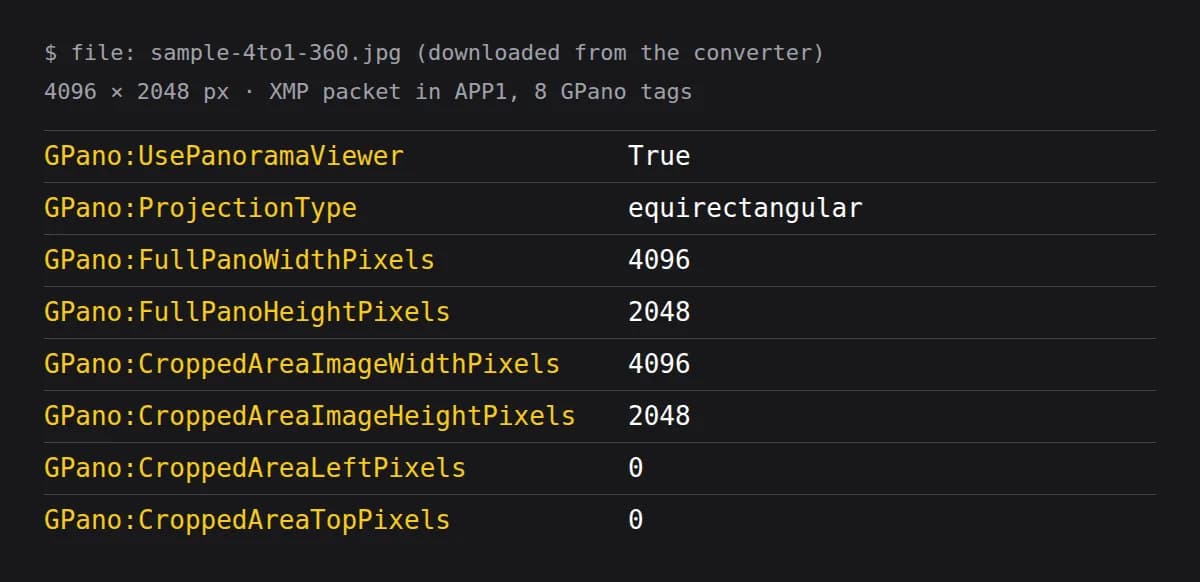
The export is already the full 2:1 canvas, so the tool writes UsePanoramaViewer, ProjectionType=equirectangular, FullPanoWidthPixels, FullPanoHeightPixels and CroppedAreaImage* values equal to the whole image, with left and top set to 0. These follow Google's spherical metadata specification. To check or repair tags on another file, use the 360 EXIF Fixer, and to look at any equirectangular image use the 360 panorama viewer online.
Size limits
The output is capped at 8192 pixels wide (8192 × 4096) so it stays within phone memory. A source wider than the cap is downscaled. When the field of view is below 360°, the canvas is wider than your source, so the picture is drawn smaller inside it. To shrink the file for the web afterwards, see 360 panorama optimization.
Sources
- Google: Photo Sphere XMP (spherical metadata)
- Facebook Help Center: Upload or edit 360 photos on Facebook
- Wikipedia: Equirectangular projection
- MDN: CanvasRenderingContext2D.filter, used for the blur fill
FAQ
How do I convert an image to a 360 view?
Load the image, check the estimated field of view, pick a fill mode and download the 360 JPEG. The tool puts the image on a 2:1 equirectangular canvas and writes the Photo Sphere tags, so a 360 viewer opens it as a sphere.
Is there a free panorama to 360 converter?
Yes. This one is free and runs in your browser, so there is no upload and no sign-up to convert and download.
Does it work with Facebook?
The export is a 2:1 equirectangular JPEG with Photo Sphere tags, the format 360 viewers read. Facebook's help center says to upload 360 photos from the Facebook app for iOS or Android, as a single photo. The padded areas are still padding, not real scenery.
What aspect ratio is a 360 photo?
A full 360° equirectangular photo is 2:1: the width is twice the height. This tool always exports 2:1, up to 8192 × 4096.
Can I convert a normal photo or panorama into a real 360° image?
Only partly. The tool places your image on a 360° canvas and fills the empty space with blur, a mirror or a color. The filled area is synthetic padding, not captured scenery, so it is best for previews and sharing, not for accurate virtual tours.
Is my image uploaded to a server?
No. The image is decoded, drawn and exported with your browser's canvas. Nothing is sent to Panoee.
What does the field of view setting do?
It tells the tool how many degrees your image covers. A 360° sweep fills the full width; a narrower panorama is centered with padding on both sides. The tool estimates it from the aspect ratio and you can correct it.
What size is the exported file?
The export is always 2:1 and capped at 8192 pixels wide so it works on phones. Larger sources are downscaled.