
Scaricare i supporti dalla libreria multimediale di Panoee
Usa l'azione di download della libreria multimediale quando devi eseguire un backup dei supporti, consegnare file a un collega o a un cliente oppure riutilizzare asset selezionati al di fuori di Panoee Studio.
Procedura
-
Aprire Media
Accedi a Panoee Studio e apri Media dal menu di navigazione superiore.
-
Scegliere l'origine e l'album
Nella barra laterale, seleziona l'origine dei supporti, ad esempio Pano o Asset, quindi apri l'album che contiene i file da scaricare.
-
Trovare i supporti
Se l'album contiene molti file, usa Cerca media... o Ordina media per individuare più facilmente i supporti corretti prima di selezionarli.
-
Selezionare i file
Seleziona la casella di controllo su ciascuna miniatura dei supporti da scaricare. Panoee mostra il numero di elementi selezionati sopra la griglia.
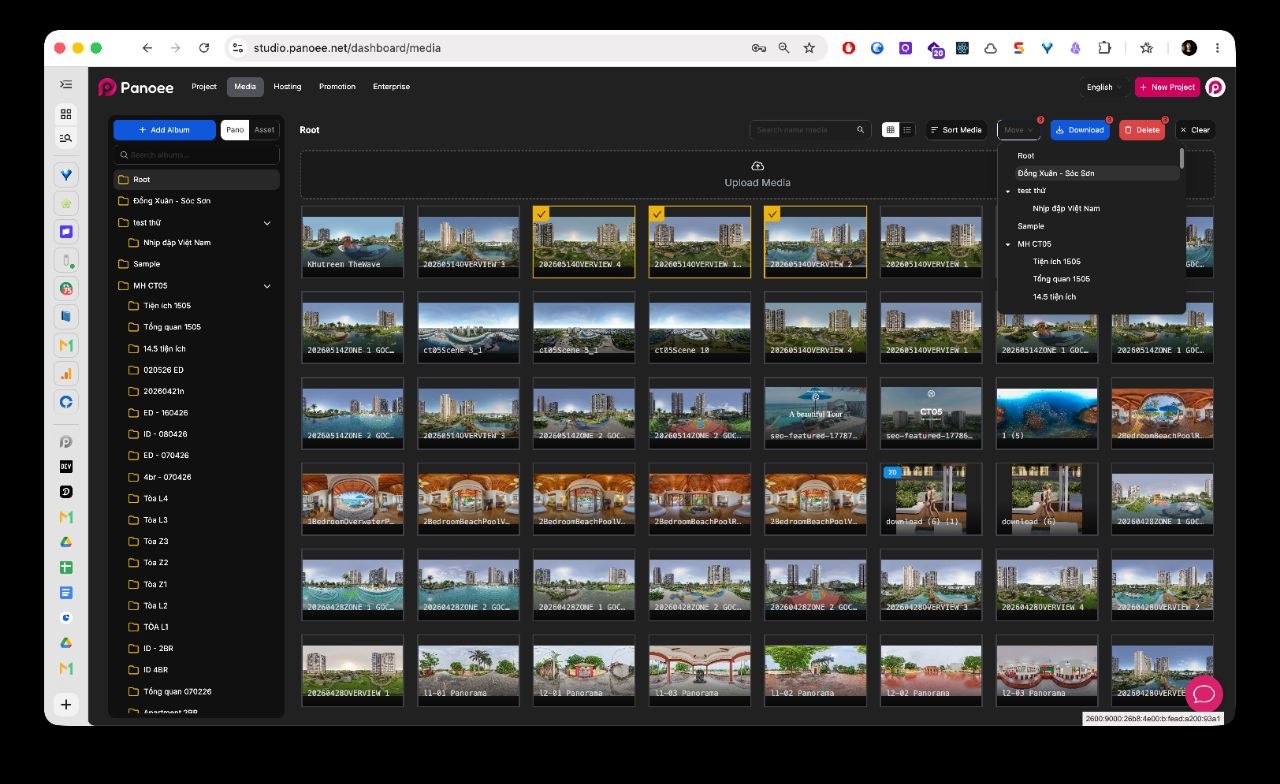
-
Scaricare la selezione
Fai clic su Download nella barra delle azioni collettive. Se il browser mostra un prompt di download, segui le indicazioni.
-
Verificare i file scaricati
Al termine del download, controlla la cartella dei download del browser e conferma che i file previsti siano stati salvati correttamente.
Note
- Seleziona solo i file necessari prima di fare clic su Download.
- Se devi scaricare molti file, ordinali o cercali prima, così la selezione è più facile da verificare.
- Il comportamento del browser può variare in base alle impostazioni di download.
- Se Panoee raggruppa più file in un unico download, mantieni un nome file chiaro quando lo salvi o lo condividi.