
Visualizzare e Scaricare le Fatture in Panoee
La pagina Fatture ti consente di consultare la cronologia dei pagamenti, verificarne lo stato e scaricare i PDF delle fatture per la contabilità o per i tuoi archivi interni.
Procedura
-
Aprire la sezione Fatture
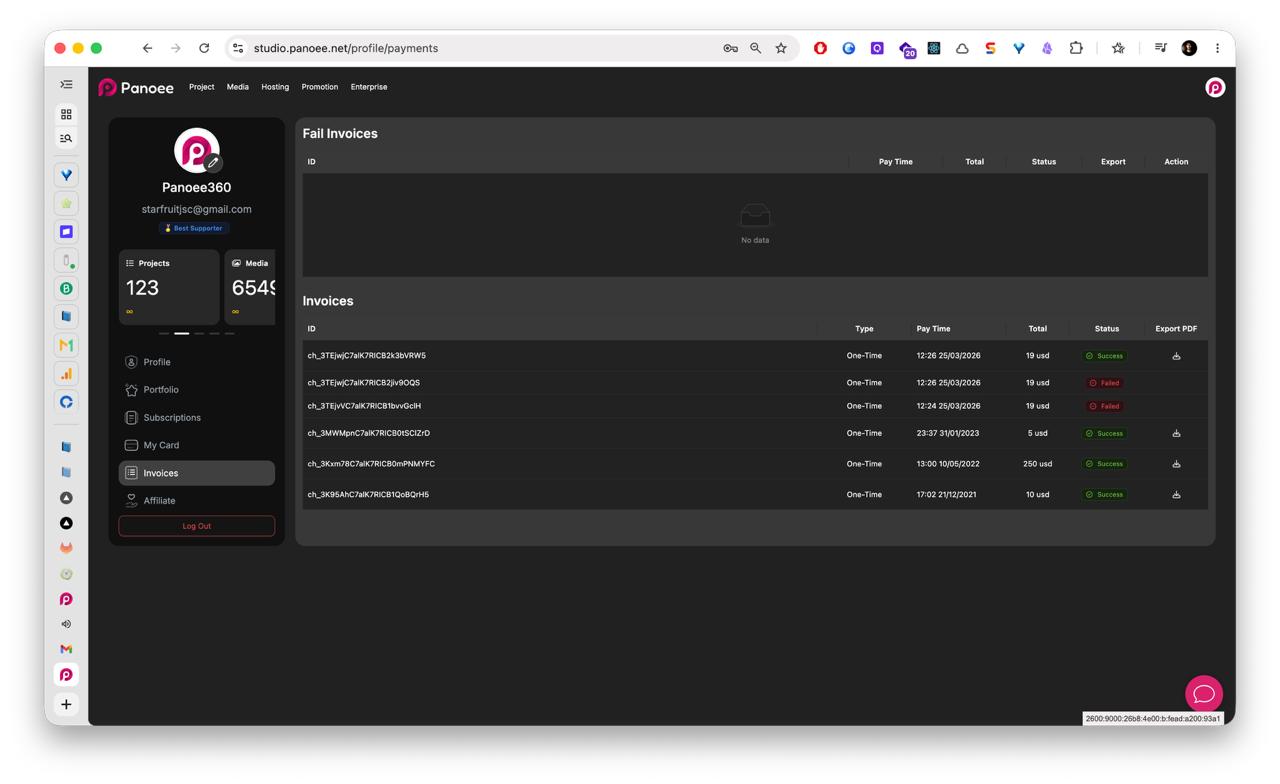
Dalla dashboard di Panoee, apri il menu del tuo account facendo clic sull'avatar in alto a destra. Seleziona Fatture dalla barra laterale dell'account.
-
Controllare le fatture non riuscite
Controlla prima la sezione Fatture non riuscite. Se un pagamento non è andato a buon fine, potrebbe comparire qui con il suo ID, l'orario del pagamento, l'importo totale, lo stato, l'opzione di esportazione e l'azione disponibile.
-
Esaminare la cronologia delle fatture
Nella tabella Fatture, verifica ogni fattura per ID, tipo, orario del pagamento, importo totale e stato. I pagamenti riusciti sono contrassegnati come Riuscito.
-
Esportare il PDF di una fattura
Utilizza la colonna Esporta PDF per scaricare il file della fattura di cui hai bisogno.
-
Usare lo stato per la risoluzione dei problemi
Se una fattura mostra lo stato Non riuscito, verifica il metodo di pagamento oppure contatta l'assistenza indicando l'ID della fattura.
Note
- Le fatture non riuscite e quelle regolari possono comparire in sezioni separate.
- I PDF delle fatture sono utili per la contabilità, i rimborsi e la documentazione aziendale.
- Se una fattura non riuscita è collegata a un abbonamento attivo, controlla la carta di pagamento salvata prima di riprovare.