
Acquista spazio di archiviazione aggiuntivo in Panoee
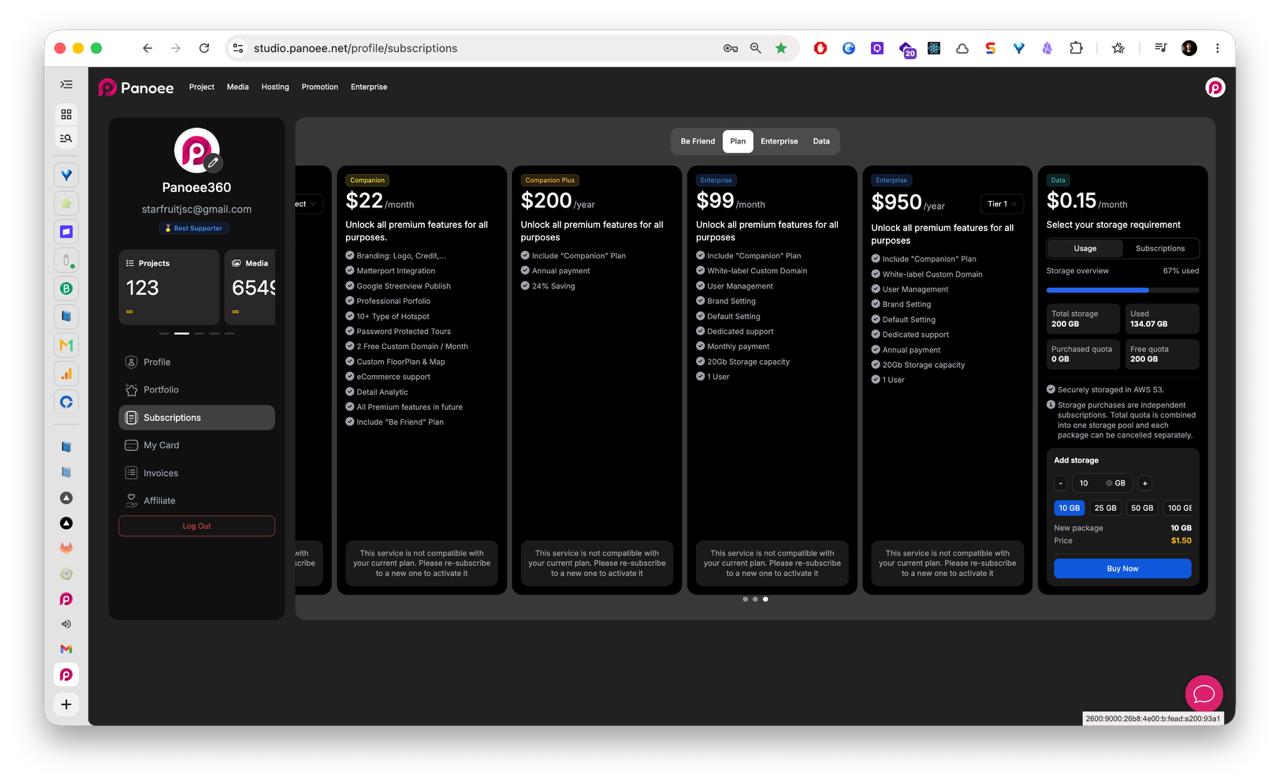
Lo spazio di archiviazione influisce sulla quantità di media del progetto e di dati dei tour virtuali che il tuo account Panoee può contenere. La pagina Sottoscrizioni include una panoramica dello spazio di archiviazione e le opzioni per acquistare spazio aggiuntivo.
Procedura
-
Apri Sottoscrizioni
Dalla dashboard di Panoee, apri il menu account facendo clic sul tuo avatar nell'angolo in alto a destra. Seleziona Sottoscrizioni dalla barra laterale dell'account.
-
Controlla la panoramica dello spazio di archiviazione
Controlla l'indicatore di utilizzo dello spazio per vedere quanto spazio è stato occupato. La panoramica può mostrare lo spazio totale, lo spazio utilizzato, la quota acquistata e la quota gratuita.
-
Apri Aggiungi spazio
Nell'area dello spazio di archiviazione, usa Aggiungi spazio per scegliere un pacchetto di spazio aggiuntivo.
-
Scegli una quantità di spazio
Seleziona la quantità di spazio che vuoi aggiungere, ad esempio 10 GB, 25 GB, 50 GB o 100 GB.
-
Verifica il prezzo
Controlla il riepilogo del nuovo pacchetto e il prezzo prima di proseguire.
-
Acquista il pacchetto di spazio
Fai clic su Acquista ora per acquistare il pacchetto di spazio selezionato.
Note
- L'acquisto di spazio può essere separato dal tuo piano di sottoscrizione principale.
- Controlla lo spazio utilizzato prima di acquistare per scegliere la dimensione del pacchetto giusta.
- Assicurati di avere una carta di pagamento valida in Le mie carte prima di acquistare spazio aggiuntivo.