
Passaggi
Aggiornare il suono di sottofondo di una scena
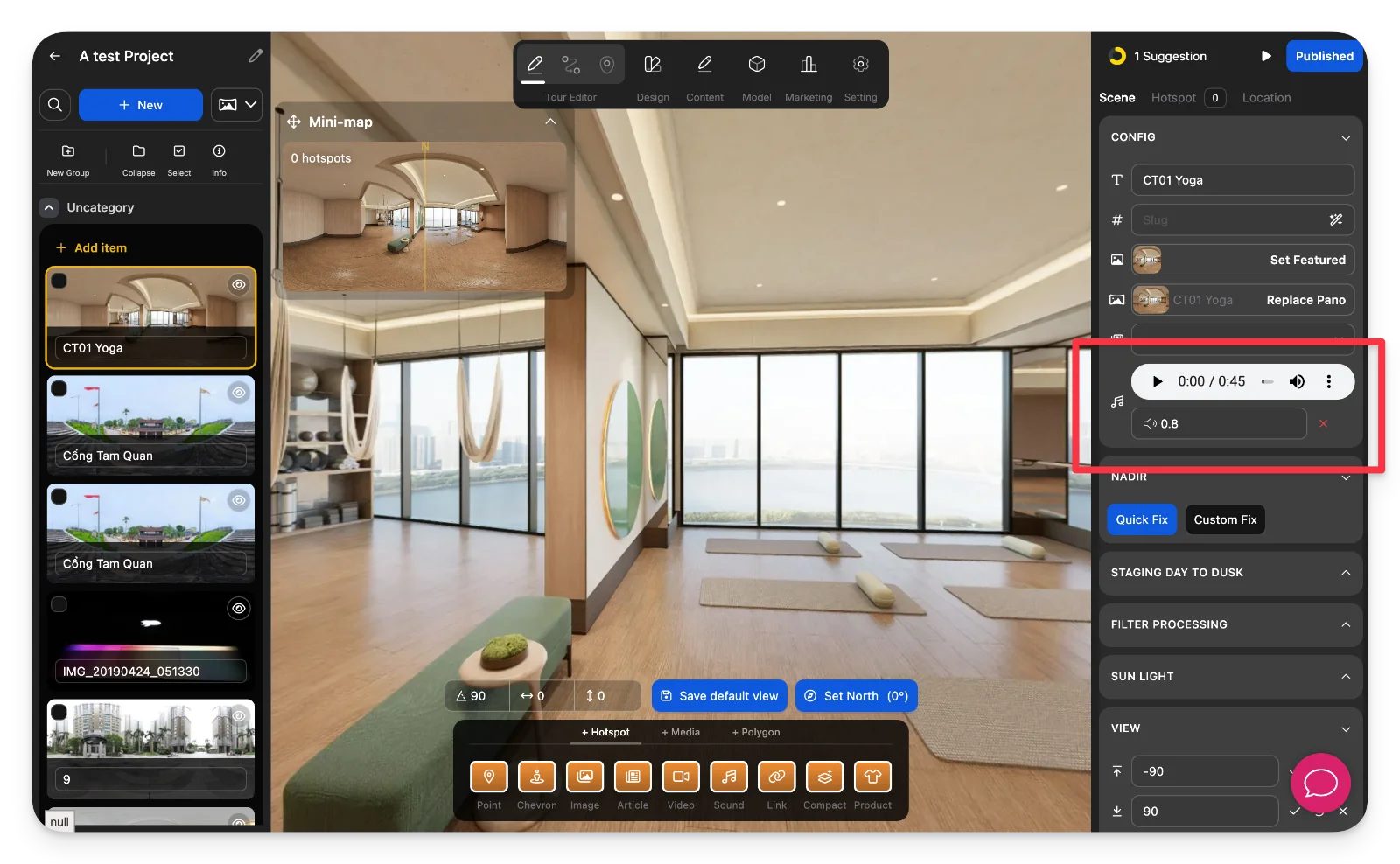
-
Seleziona una scena
Nel pannello di sinistra, scegli la scena a cui vuoi aggiungere o modificare il suono di sottofondo. -
Carica l'audio di sottofondo
Nel pannello di destra, individua la sezione Suono e fai clic su Carica file .mp3 per aggiungere il tuo file audio.
Aggiornare il suono di sottofondo dell'intero tour
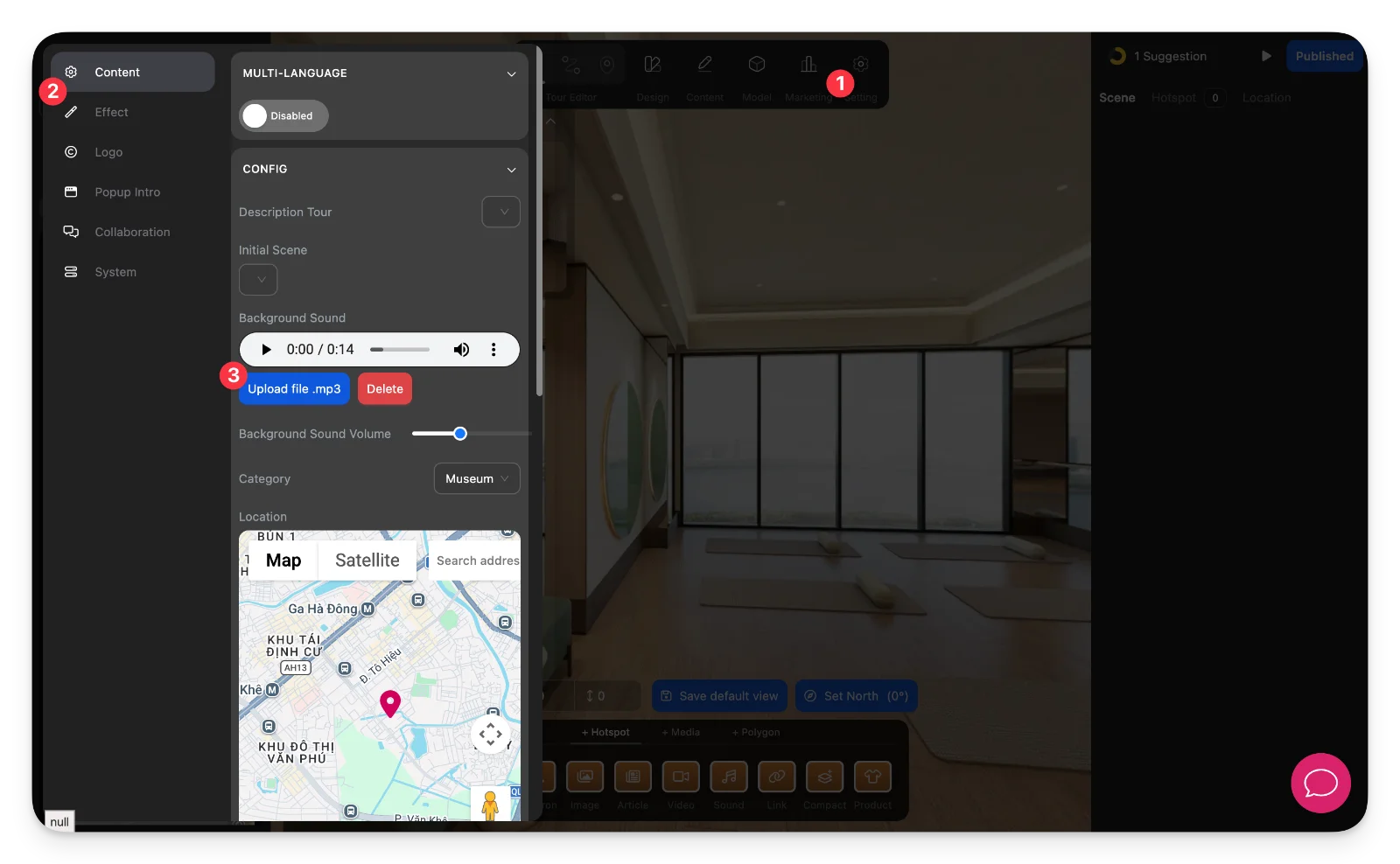
-
Apri le impostazioni del tour
Fai clic sull'icona Impostazioni nel menu in alto per accedere alle impostazioni globali del tour. -
Carica il suono di sottofondo globale
Nella sezione Contenuti, individua Suono di sottofondo e carica il tuo file .mp3. Se necessario, regola il volume.
Note
-
Il suono a livello di scena viene riprodotto quando quella specifica scena è attiva.
-
Il suono a livello di tour viene applicato a tutte le scene, a meno che non venga sostituito.
-
Più sorgenti audio (suono della scena, suono degli hotspot e suono del tour) possono essere riprodotte contemporaneamente.
-
Fai attenzione a evitare conflitti audio o sovrapposizioni di suoni che potrebbero compromettere l'esperienza dell'utente.