
Why This Camera & Lens Are Great for Panoramas
If you’re researching how to shoot panorama with Olympus OM-1 & Tokina ATX-i 11-20mm f/2.8, you’re on a powerful path. The OM System OM‑1 is a rugged, weather-sealed Micro Four Thirds mirrorless body with a 20.4MP stacked BSI sensor (17.3 × 13.0 mm). It delivers fast readout, excellent color, and roughly 12 stops of usable dynamic range at base ISO—ideal for consistent, multi-frame stitching. The 5‑axis IBIS is world-class for handheld work, and can be disabled for tripod shooting to keep frames aligned.
The Tokina ATX‑i 11‑20mm f/2.8 is a constant-aperture rectilinear zoom. Rectilinear lenses maintain straight lines—valuable for architecture and interiors—at the cost of requiring more shots than a fisheye. At 11mm you’ll get an ultra-wide field of view on APS‑C; adapted for Micro Four Thirds, it becomes a moderately wide zoom that is still very workable for high-quality multi-row 360° panoramas. Distortion at 11mm is present but predictable, lateral CA is modest and easily corrected, and the lens sharpens up nicely by f/5.6–f/8—sweet spots for panorama work.
Mount compatibility note: The ATX‑i 11‑20mm f/2.8 is commonly available in Canon EF‑S/Nikon F APS‑C mounts. On the Olympus OM‑1, use a suitable EF‑to‑MFT or F‑to‑MFT adapter. For the widest angle and better light efficiency, consider a 0.71× focal reducer (“speed booster”). You’ll likely shoot manual focus for consistent stitching anyway, so a non-electronic adapter is acceptable; just confirm you can adjust aperture if your lens requires electronic control.
Quick Setup Overview
- Camera: Olympus OM‑1 — Micro Four Thirds 20.4MP stacked BSI sensor; base ISO 200 (LOW 80); weather sealing to IP53; ~12 EV DR at base; excellent color depth.
- Lens: Tokina ATX‑i 11‑20mm f/2.8 — rectilinear zoom; good center-to-edge sharpness by f/5.6–f/8; modest barrel distortion at 11mm; lateral CA easily corrected in post.
- Estimated shots & overlap (rectilinear, ~30% overlap, tripod, portrait orientation):
- Plain adapter (MFT effective focal length = 11–20mm): at 11mm ≈ 7 shots per row; typical 3 rows (−45°, 0°, +45°) + zenith + nadir ≈ 23 frames for full 360×180°.
- With 0.71× focal reducer (effective 7.8–14.2mm): at 7.8mm ≈ 6 shots per row; 2 rows (−30°, +30°) + zenith + nadir ≈ 14 frames total.
- At 20mm (plain adapter) ≈ 11 shots per row; plan on 4 rows for a full sphere—more meticulous, best for ultra-high-resolution output.
- Difficulty: Moderate (rectilinear zoom requires accurate nodal alignment and more frames than a fisheye, but rewards you with straight lines and high resolution).
Planning & On-Site Preparation
Evaluate Shooting Environment
Before you set up, scan the scene for moving subjects (people, cars, leaves), reflective surfaces (glass, polished metal), and dynamic lighting (flickering LEDs, changing neon). If you must shoot through glass, place the lens hood as close as possible to the glass to minimize reflections and ghosting. For mirrors and glossy floors, be mindful that your tripod and body may appear—plan a nadir shot and patch later.
Match Gear to Scene Goals
The OM‑1’s stacked sensor and color science make it a capable body for both outdoor and interior panoramas. Use ISO 200 for maximum dynamic range; ISO 800–1600 remains very usable with careful exposure. The Tokina ATX‑i 11‑20mm f/2.8, being rectilinear, excels when straight verticals matter (real estate, architecture). You’ll shoot more frames than with a fisheye, but you’ll avoid fisheye curvature on walls and door frames—saving time in post straightening.
Pre-shoot Checklist
- Battery and storage: OM‑1’s BLX‑1 battery is solid, but panoramas multiply frames; bring at least one spare and high-speed UHS‑II cards.
- Clean optics and sensor: Dust spots repeat across frames and are tedious to clone out in skies or walls.
- Tripod leveling and pano head calibration: Level the base, then confirm nodal point alignment (see guide below).
- Safety checks: On rooftops or windy areas, tether the camera; keep the center column low; consider a sandbag on a leg.
- Backup workflow: If the light is changing, shoot a quick safety round first, then a second, slower, higher-quality pass.
Essential Gear & Setup
Core Gear
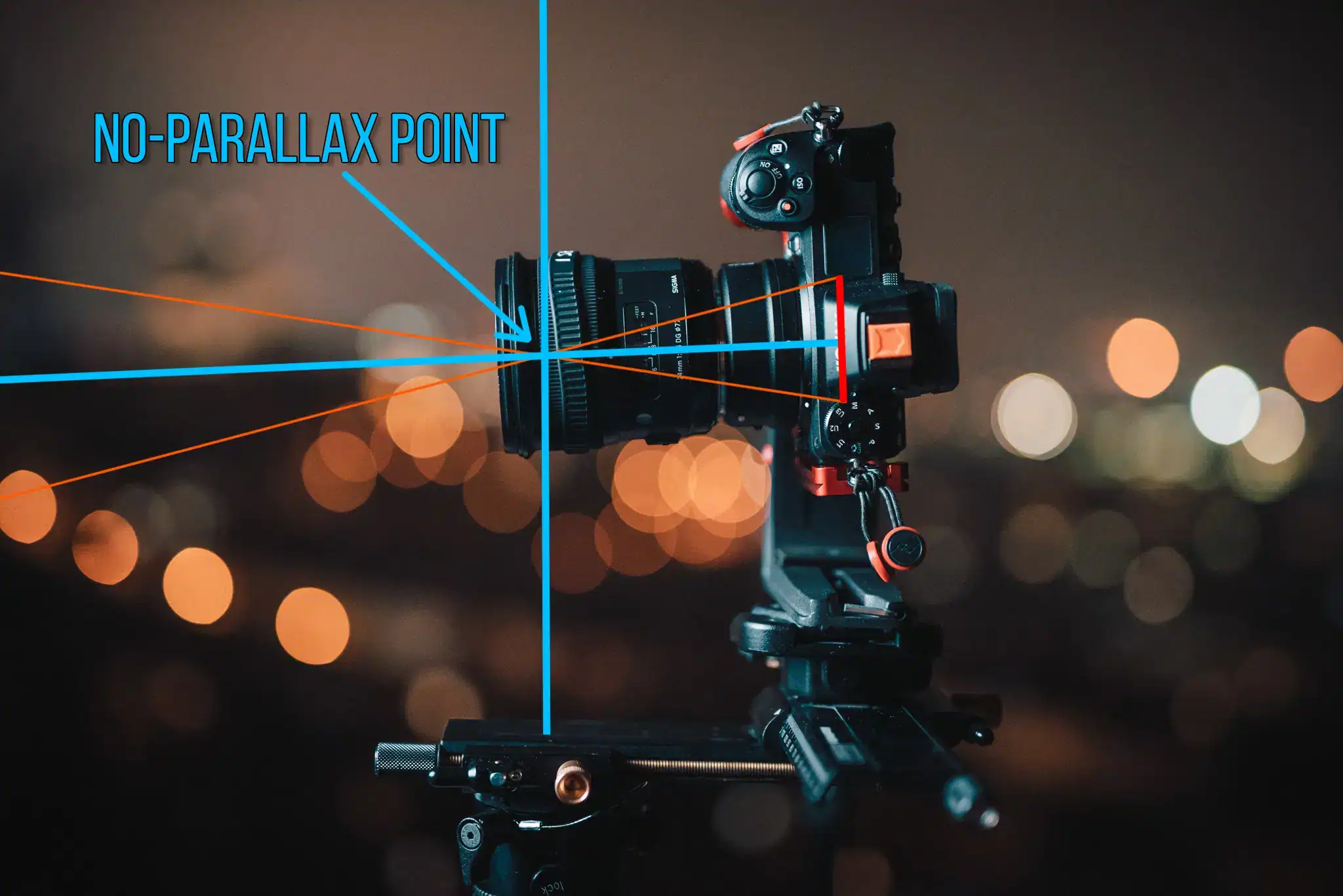
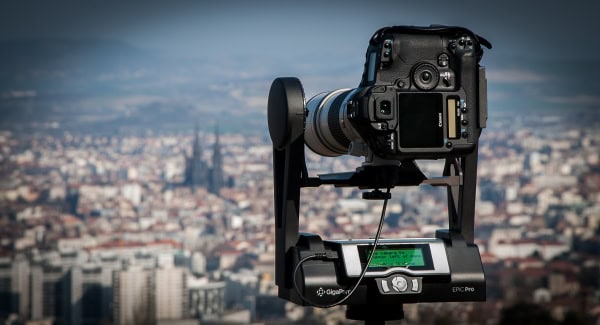
- Panoramic head: Use a head that lets you position the entrance pupil (often called the “nodal point”) directly over the rotation axis. This prevents parallax—critical for clean stitches in tight interiors and near objects.
- Stable tripod with leveling base: A leveling base speeds your setup and keeps pitch adjustments minimal across the sweep.
- Remote trigger or app: Trigger with the OM System app or a remote to avoid vibrations. Use a 2s self-timer if you don’t have one.
Optional Add-ons
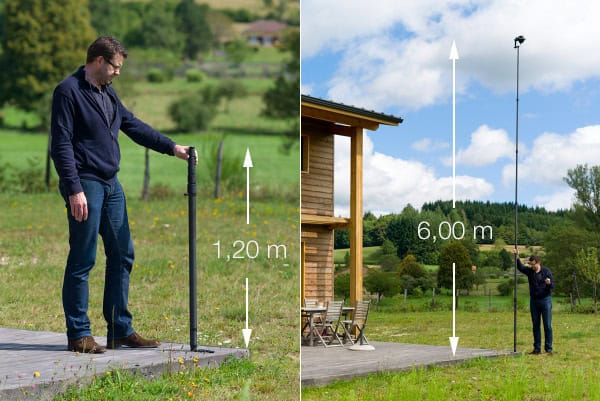
- Pole or car mount: Great for elevated views and parked-car interiors. Always tether your gear and verify load ratings; wind load increases dramatically with height.
- Lighting aids: Portable LED panels for dim interiors; keep color temperature consistent and set a manual white balance.
- Weather protection: The OM‑1 is IP53-sealed, but the lens and adapter may not be. Use a rain cover when needed.
Step-by-Step Shooting Guide
Standard Static Scenes
- Level and align: Level the tripod with the leveling base. Mount the Tokina and adjust the panoramic head so the lens’s entrance pupil sits over the rotation axis. Test quickly: place a light stand or pole close to the lens, with a building edge far behind; rotate left/right and minimize relative motion between near and far objects via fore-aft adjustments.
- Manual exposure and white balance: Set M mode. For daylight, start at ISO 200, f/8, 1/160s, Daylight WB (or a Kelvin value like 5600K). Lock exposure and WB for the entire sequence to avoid flicker and color shifts.
- Focus: Switch to manual focus, magnify, and focus slightly beyond hyperfocal at your chosen aperture. At 11–14mm and f/8 on MFT, you’ll get deep DOF.
- Overlap and capture: For 11mm (plain adapter), use about 30% overlap. A practical set is 7 shots per row at 0°, plus 7 at +45°, 7 at −45°, then one zenith and one nadir. Use the index stops on your pano head for consistency.
- Nadir cleanup: Take a separate nadir shot by moving the tripod slightly and shooting straight down, or handheld from above with the tripod moved out—this helps you patch the tripod in post.
HDR / High Dynamic Range Interiors
- Bracket: Use ±2 EV brackets (3–5 exposures) to balance bright windows and shadowed corners. Keep WB locked.
- Consistent timing: Fire brackets quickly to limit subject movement. If your adapter doesn’t support electronic communication, set bracketing in-camera and use a remote for speed.
- Merge then stitch: For best quality, pre-merge brackets to 32‑bit HDR TIFFs per view, then stitch. Alternatively, PTGui can blend brackets at stitch time.
Low-Light / Night Scenes
- Stable settings: Disable IBIS on a tripod. Use ISO 200–800 where possible; ISO 1600 is usable but expect more noise. Lengthen shutter to 1–8 seconds as needed.
- Trigger carefully: Use a remote or 2s timer. Consider EFCS/anti-shock or silent mode to avoid shutter shock; if you see banding under certain LED lights, switch to mechanical shutter and sync your shutter speed with the mains frequency (1/50–1/60 or multiples).
- Avoid star trailing: If including the night sky, keep exposures short enough for your focal length on MFT or plan to stack exposures for noise reduction.
Crowded Events
- Two-pass method: First pass quickly captures the entire sphere for safety. Second pass, wait for gaps and clean views of key areas.
- Mask in post: In PTGui or similar, choose the frame with minimal people for each area and paint masks to prioritize that frame during blending.
Special Setups (Pole / Car / Drone)
- Pole work: Use a lightweight panoramic head and a clamp to keep mass centered. Tether everything. Rotate more slowly and use a faster shutter (1/250+) to mitigate sway.
- Car interiors: Lower your exposure to avoid blown highlights on dashboards, bracket for bright windows, and expect to patch the nadir aggressively.
- Drone: If you shoot with the OM‑1 from a mast or crane, ensure remote release and consider a smaller overlap to reduce time aloft; verify structural safety always.
Recommended Settings & Pro Tips
Exposure & Focus
| Scenario | Aperture | Shutter | ISO | Notes |
|---|---|---|---|---|
| Daylight outdoor | f/8–f/11 | 1/100–1/250 | 100–200 (LOW 80 if needed) | Lock WB (Daylight); maximize DR at base ISO |
| Low light/night | f/4–f/5.6 | 1/30–1s+ | 200–800 (1600 if needed) | Tripod + remote; IBIS OFF on tripod |
| Interior HDR | f/8 | Bracket ±2 EV | 100–400 | Pre-merge HDR or blend during stitching |
| Action/motion | f/5.6–f/8 | 1/200+ | 400–800 | Faster shutter to freeze people between frames |
Critical Tips
- Hyperfocal manual focus: At 11–14mm and f/8 on MFT, set focus a bit past 1–1.5 m to keep near-to-far sharpness.
- Nodal calibration: Mark your rail position for 11mm, 14mm, and 20mm. A small silver Sharpie mark saves time next shoot.
- White balance: Lock it. Mixed lighting? Choose a Kelvin (e.g., 4000–4500K for warm/cool mixes) and correct globally in post.
- RAW workflow: Shoot RAW for maximum latitude; 12-bit or 14-bit depth preserves gradients in skies and interiors.
- IBIS: Off on tripod; On only if you must shoot handheld. IBIS can introduce frame-to-frame variance on a locked-down setup.
- Shutter mode: Use silent/electronic or anti-shock to prevent vibrations; switch to mechanical if LED banding appears.
Stitching & Post-Processing
Software Workflow
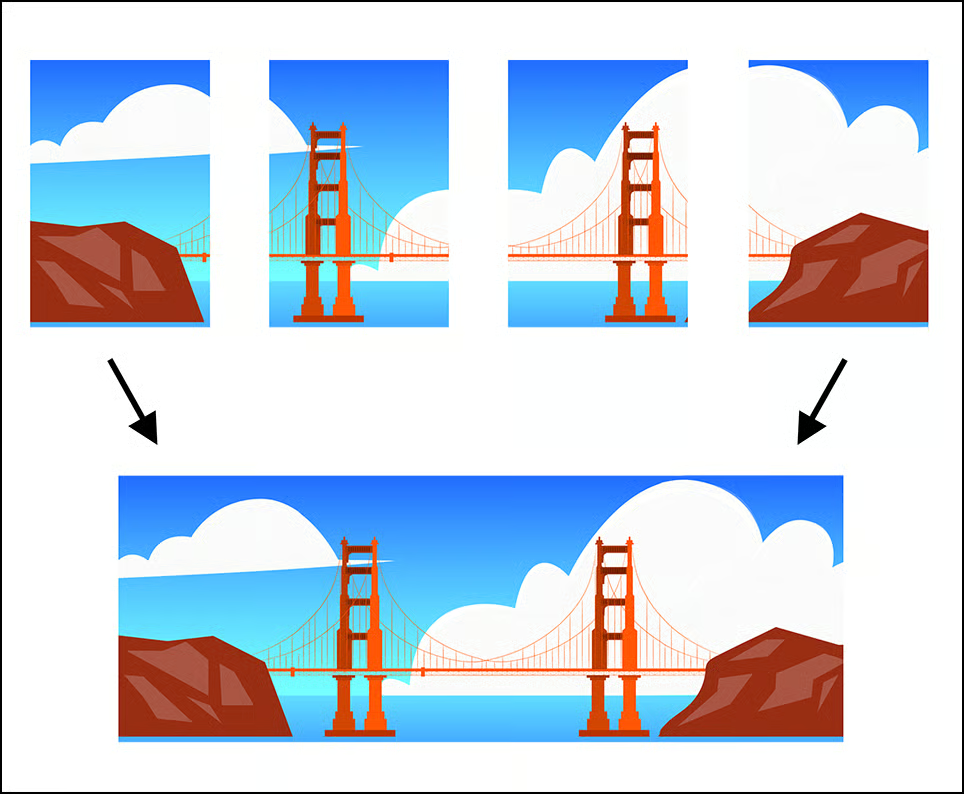
For best results, use dedicated panorama software. PTGui is fast and robust with rectilinear lenses and HDR brackets; Hugin is a capable open-source alternative. Lightroom/Photoshop can stitch single-row panoramas, but multi-row, full 360×180° spheres typically stitch more reliably in PTGui/Hugin. With rectilinear lenses, maintain 25–30% overlap; fisheye users can sometimes go lower on overlap but must manage distortion. After stitching, export an equirectangular 2:1 image (e.g., 12,000 × 6,000 px or higher) for VR platforms and virtual tours. For deeper reading on choosing a pano head and setup, see this panoramic head guide. Panoramic head tutorial (360Rumors)
Cleanup & Enhancement
- Nadir patch: Export a down-facing crop, clone in Photoshop/Affinity, or use AI tools designed for tripod removal. A dedicated nadir shot simplifies this task.
- Color and noise: Apply uniform color correction across the panorama; use selective noise reduction for shadows, especially at ISO 1600.
- Horizon leveling: In PTGui, adjust pitch/roll/yaw with vertical line constraints. Straight verticals are your friend with a rectilinear lens.
- Output: Save a layered project, export a high-quality TIFF for archiving, and a compressed JPEG for the web/VR with embedded XMP metadata when needed.
If you’re new to stitching with DSLRs/mirrorless bodies, these VR creation guidelines provide a solid overview. Using a mirrorless to shoot and stitch a 360 photo (Meta Creators)
Want a second opinion on software selection? Here’s a hands-on review that compares leading stitchers. PTGui review for creating incredible panoramas (Fstoppers)
Useful Tools & Resources
Software
- PTGui for fast, accurate control points and HDR blending.
- Hugin (open source) for a no-cost solution with advanced controls.
- Lightroom / Photoshop for RAW processing and final retouching.
- AI tripod/nadir removal tools for quick floor cleanup.
Hardware
- Panoramic heads: Nodal Ninja, Leofoto, or similar with fore-aft/left-right rails.
- Carbon fiber tripods with a leveling base for speed and stability.
- Wireless remote shutters or smartphone apps for zero-touch triggering.
- Pole extensions / car mounts with safety tethers and verified load ratings.
Disclaimer: product names are provided for search reference. Verify specs and compatibility on official sites before purchasing.
Visual learner? This video covers core concepts of capturing and stitching panoramas:
Supplement with this practical Q&A and resolution reference when planning coverage. Best techniques for 360 panoramas (StackExchange) · DSLR spherical resolution (PanoTools Wiki)
Common Mistakes & How to Avoid Them
- Parallax errors: Always align the lens entrance pupil over the rotation axis. Re-check after zooming (11 vs 20mm require different rail marks).
- Exposure flicker: Manual exposure + fixed WB for the entire sequence. Avoid auto ISO and auto WB.
- Tripod shadows and footprints: Take a dedicated nadir shot; patch in post.
- Ghosting from movement: Use two passes and mask; increase shutter speed for crowds.
- LED banding or flicker: Switch to mechanical shutter and choose a mains-friendly shutter speed (1/50–1/60, 1/100–1/120, etc.).
- IBIS artifacts on tripod: Turn IBIS off during tripod work to keep the frame geometry consistent for stitching.
Real-World Use Cases with OM‑1 + ATX‑i 11‑20mm
Indoor Real Estate (Bright Windows)
Mount the OM‑1 on a leveling base and panoramic head in the room center. Shoot at 11–14mm to keep verticals straight. Use ISO 200, f/8, bracket ±2 EV to preserve window details. Lock WB around 4500–5000K if mixed light. Expect ~21–23 frames at 11mm (plain adapter). In PTGui, blend HDR or pre-merge. Patch the nadir with a portable logo disk if desired.
Outdoor Sunset Overlook
Arrive 30 minutes early, tripod low and solid. Expose for highlights (ETTR without clipping) at ISO 200, f/8, 1/125–1/250s. As the sun dips, consider a second pass with a slightly darker exposure to retain color in the sky. If wind picks up, increase shutter speed and overlap (35%) for safety. The OM‑1’s weather sealing is a plus; protect the Tokina/adapter if rain threatens.
Event Crowds
For bustling markets or conventions, shoot faster at 1/200–1/400s, ISO 400–800, f/5.6–f/8. Keep overlap consistent and take note of moving subjects—take a safety pass, then wait for gaps and reshoot specific frames you plan to mask in.
Rooftop/Pole Panorama
Use a light pano head on a sturdy pole. Pre-mark your rail position at 11mm to minimize setup time. Shoot at 1/250s or faster, f/5.6–f/8, ISO 200–400. Tether the camera. Plan modest overlap (25–30%) and rotate slowly to reduce sway. A second pass with slightly different yaw angles can save a shot if wind gusts cause blur.
Car-Mounted Capture
For parked cars or interiors, use a suction-mount base only within rated limits. Bracket interiors with ±2 EV; watch reflections in glass and glossy dashboards. Take extra care with nadir patching; position the tripod just outside the door and shoot a separate down shot for a clean floor patch.
Frequently Asked Questions
- Can I shoot handheld panoramas with the Olympus OM‑1?
Yes, especially for quick single-row panos. Use IBIS ON, fast shutter (1/250+), and generous overlap (40%). For full 360×180° with the Tokina 11–20mm, a tripod and pano head are strongly recommended to avoid parallax and alignment issues.
- Is the Tokina ATX‑i 11‑20mm f/2.8 wide enough for single-row 360s on MFT?
On a plain adapter, 11mm behaves like a moderately wide lens on MFT; you’ll generally need multi-row coverage plus zenith/nadir. With a 0.71× focal reducer (~7.8mm effective), two rows plus zenith/nadir can cover the sphere efficiently.
- Do I need HDR for interiors with bright windows?
Often yes. Bracket ±2 EV (3–5 frames) to capture both window highlights and interior shadows. Merge to HDR before stitching or let PTGui blend the brackets at stitch time for a smooth dynamic range.
- How do I avoid parallax issues with this setup?
Use a panoramic head and align the lens entrance pupil over the rotation axis. Calibrate fore-aft for 11mm and again for 20mm, and mark those positions. Re-check after any zoom change or adapter swap.
- What ISO range is safe on the OM‑1 for low light panoramas?
ISO 200–800 is a safe working range with good noise control and color depth. ISO 1600 is usable if you expose well and apply noise reduction. Prioritize a tripod and longer shutter over pushing ISO.
Advanced Coverage & Resolution Planning
If your goal is ultra-high-resolution virtual tours, consider shooting at 16–20mm to stack more frames per row. Yes, it’s slower, but the resulting detail (especially on textures and signage) can be stunning. Use a consistent yaw step (e.g., 30–32° at 14–16mm) and add extra rows to ensure coverage at the zenith and nadir. For planning exact spherical resolution and output pixel counts, reference spherical resolution calculators to match your client’s deliverable specs. Spherical resolution reference (PanoTools Wiki)
Safety, Reliability & Backup Workflow
Elevated scenes, rooftops, and poles demand redundancies: safety tethers, wind checks, and conservative shutter speeds. Keep the center column low and use a counterweight if necessary. In rain or mist, the OM‑1 body can handle it, but make sure your adapter and Tokina lens are protected. After each panorama, quickly review critical frames (zenith, nadir, and any high-contrast edges) and, if time allows, shoot a second complete pass—this saves jobs when a single frame is soft, misaligned, or blocked by a passerby.
For more background on choosing camera/lens combos for virtual tours, this deep-dive is helpful. DSLR/mirrorless camera & lens guide for virtual tours (360Rumors)