Panoee

Documents

Published documents from existing production API.

Edit hotspot Product

5 Jan 2023

Edit hotspot Product

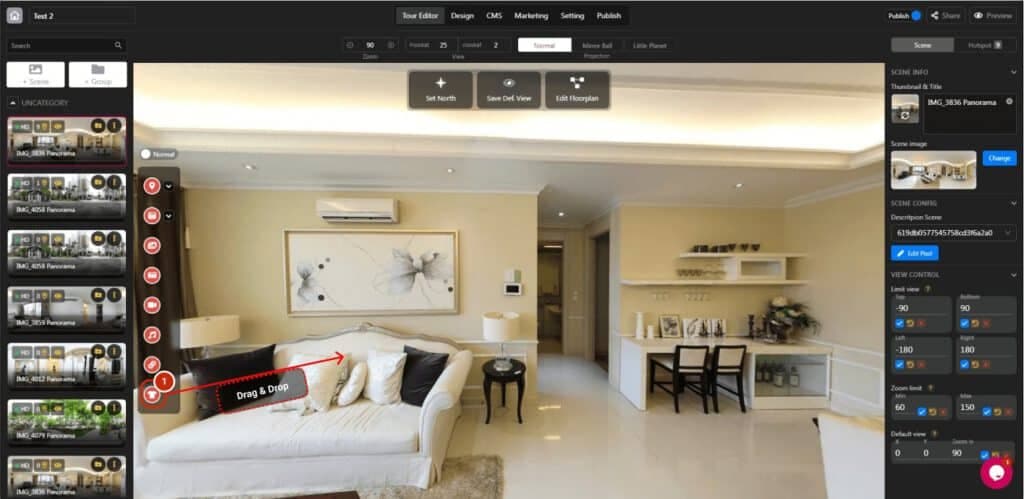
Each hotspot has different objectives. A product hotspot is essential to add your e-commerce products for sales. 1. Drag and drop sound hotspot to your preference. 2. Click the hotspot icon to open the hotspot panel. 3. Select the product

Read more
Edit Hotspot Link

5 Jan 2023

Edit Hotspot Link

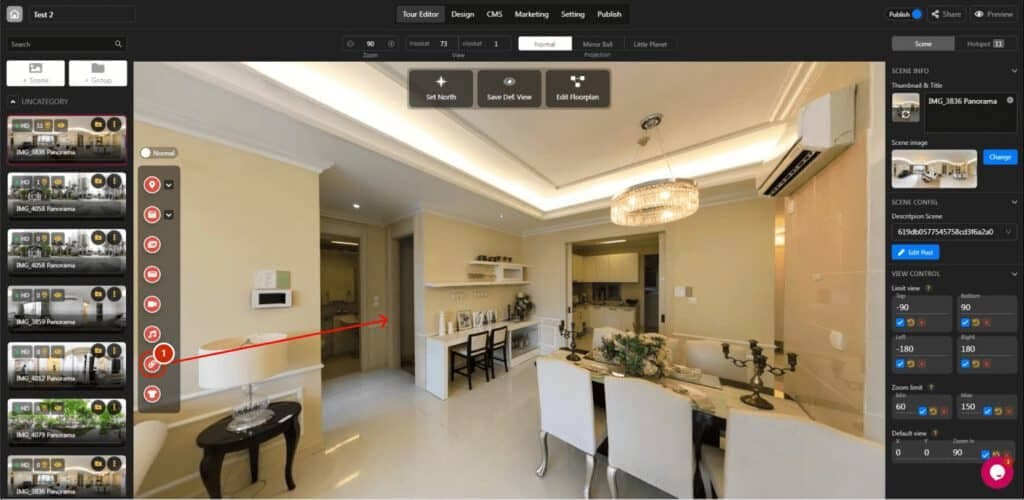
Each hotspot has different objectives. A link hotspot is essential to add the URL to virtual tours to navigate visitors: 1. Drag and drop sound hotspot to your preference. 2. Click the hotspot icon to open the hotspot panel. 3.

Read more
Edit hotspot sound

5 Jan 2023

Edit hotspot sound

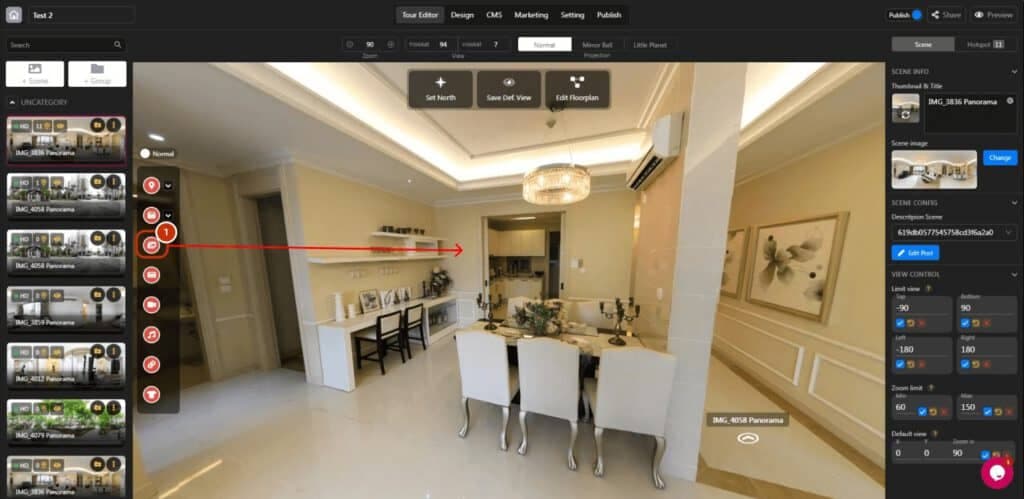
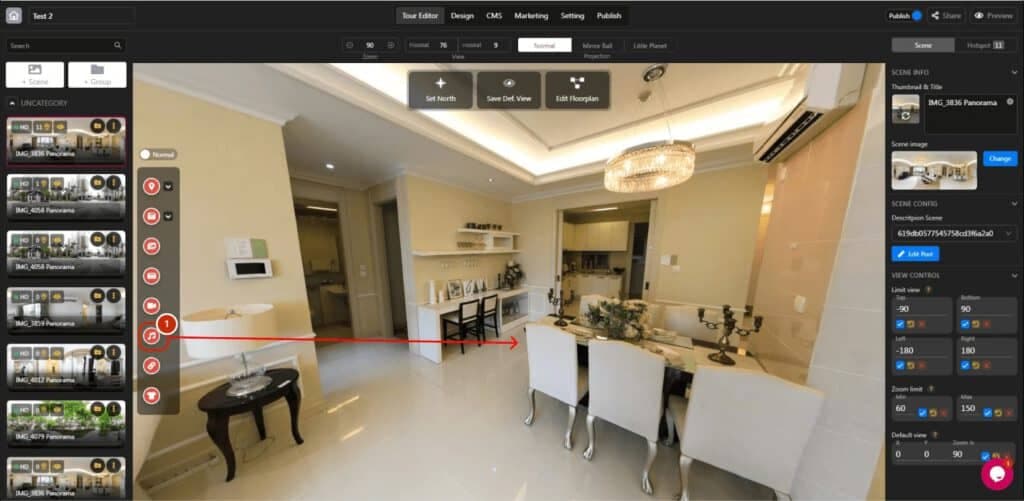
ADD THE AUDIO 1. Drag and drop sound hotspot to your preference. 2. Click the hotspot icon to open the hotspot panel. CONFIG SOUND PROPERTIES 1. Upload your .mp3 file 2. Reach: Set the sound reach to the whole tour.

Read more
Edit hotspot Video

5 Jan 2023

Edit hotspot Video

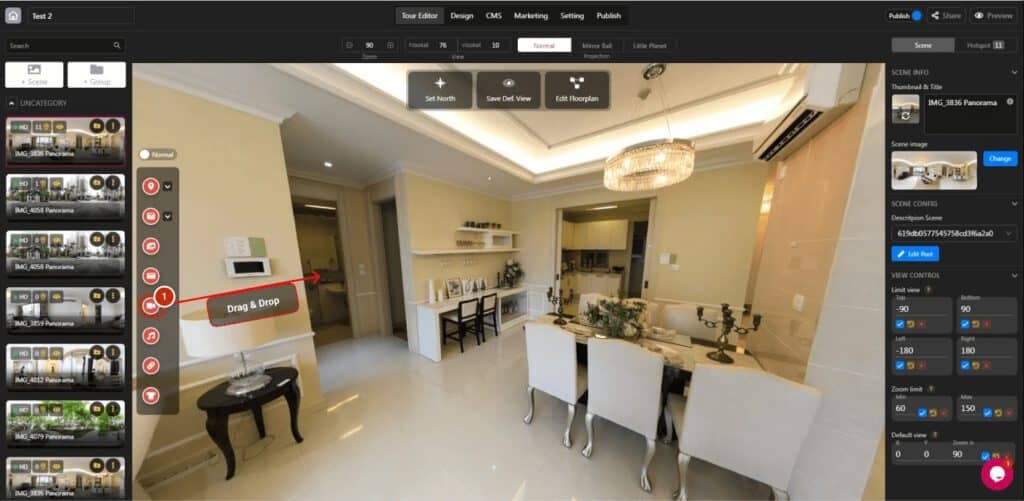
Each hotspot has different objectives. Video hotspot is essential to add popup video to your virtual tours. 1. Drag and drop article hotspot to your preference. 2. Click the hotspot icon to open the hotspot panel. 3. Copy and paste

Read more
Edit hotspot Image

5 Jan 2023

Edit hotspot Image

As you have known about objectives of each hotspot. Image hotspot is important to add images to your virtual tours as a gallery: 1. Drag and drop the hotspot image to the specific spot. 2. Click hotspot icon to open

Read more
Edit hotspot Media – Image

5 Jan 2023

Edit hotspot Media – Image

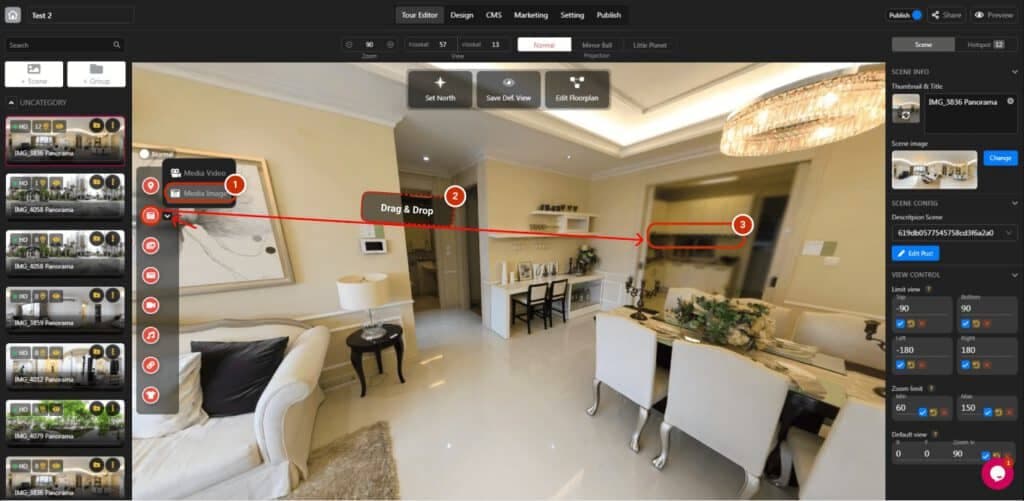
As the introduction of interactive hotspots, media image is a super helpful feature: 1. Click the toggle-down button and choose "Media Image". 2. Drag and drop media video hotspot icon to the scene. 3. Click the hotspot to open the

Read more
Edit hotspot Media – Video

5 Jan 2023

Edit hotspot Media – Video

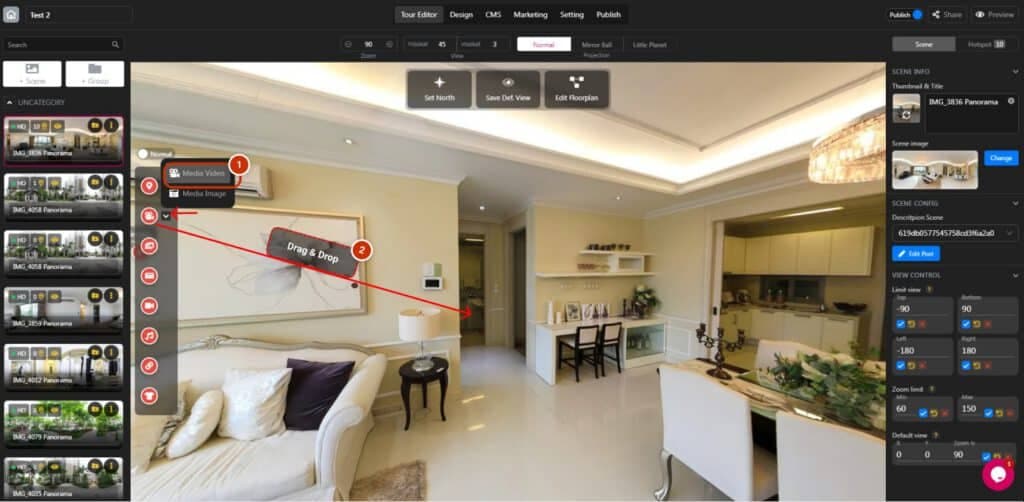
As the introduction of interactive hotspots, media video is a super helpful feature: 1. Click the toggle-down button and choose "Media Video". 2. Drag and drop media video hotspot icon to the scene. Click the hotspot to open the hotspot panel: OPTIONS

Read more
Edit Hotspot Street Direction

5 Jan 2023

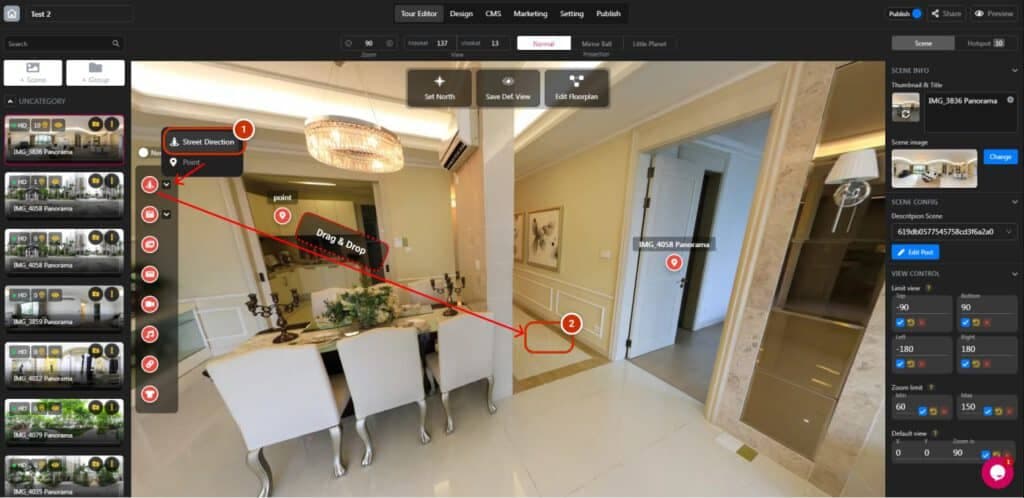
Edit Hotspot Street Direction

Let's focus on the "Street Direction" hotspot on how to use it step by step: 1. Click the toggle-down button and choose "Street Direction". 2. Drag and drop the hotspot to the destination. 3. You need other scenes to set

Read more
Share a Project

5 Jan 2023

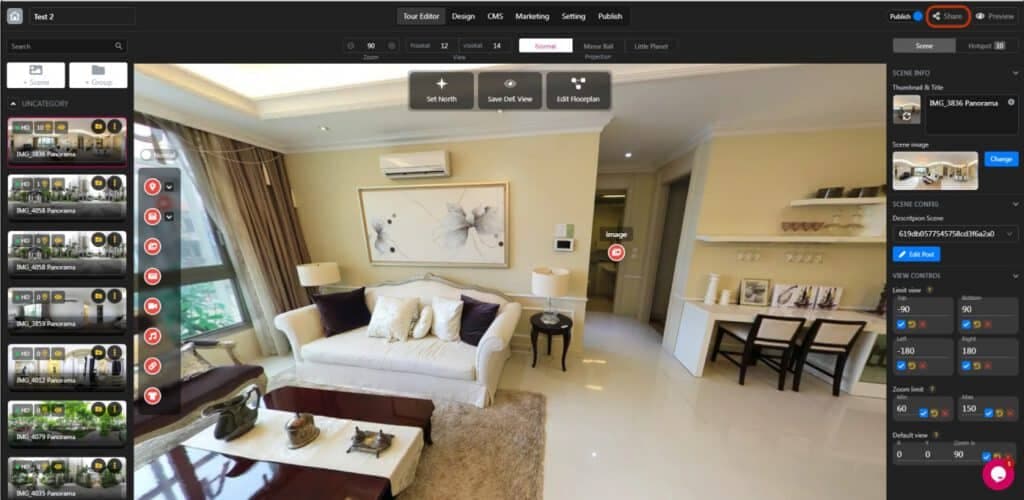
Share a Project

To share a project, you need to create a project first Open the project and click "Share" in the top left corner. There are various options that you need to know: 1. Copy virtual tour link to access the tour

Read more
Publish Projects

5 Jan 2023

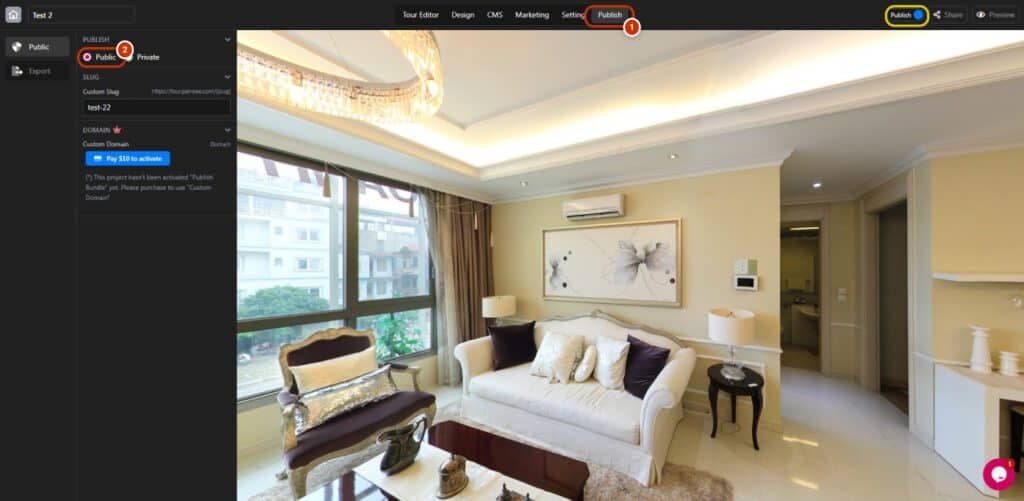
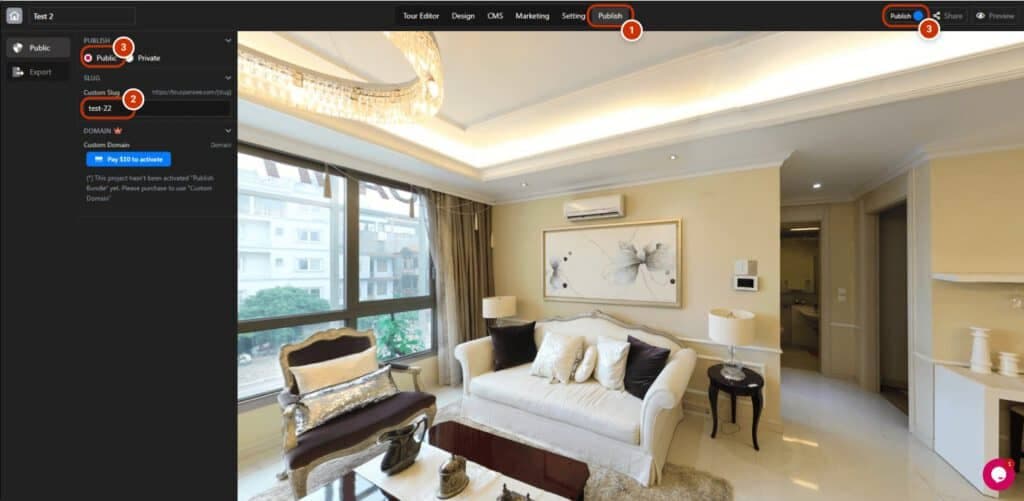
Publish Projects

Publishing projects are super easy with a click, but you need at least a project beforehand 1. Open your project and switch to the "Publish" tab on the dashboard. 2. Tick "Public" on the publish section. Or you can publish

Read more
Setup Google Analytics for your virtual tour

5 Jan 2023

Setup Google Analytics for your virtual tour

Setting up Google Analytics for your virtual tour is not too complicated, but it will take you more small steps than usual: Step 1: Copy link on the Dashboard 1. Open Panoee Studio and switch to the "Publish" tab. 2.

Read more
Manage Hotspots

5 Jan 2023

Manage Hotspots

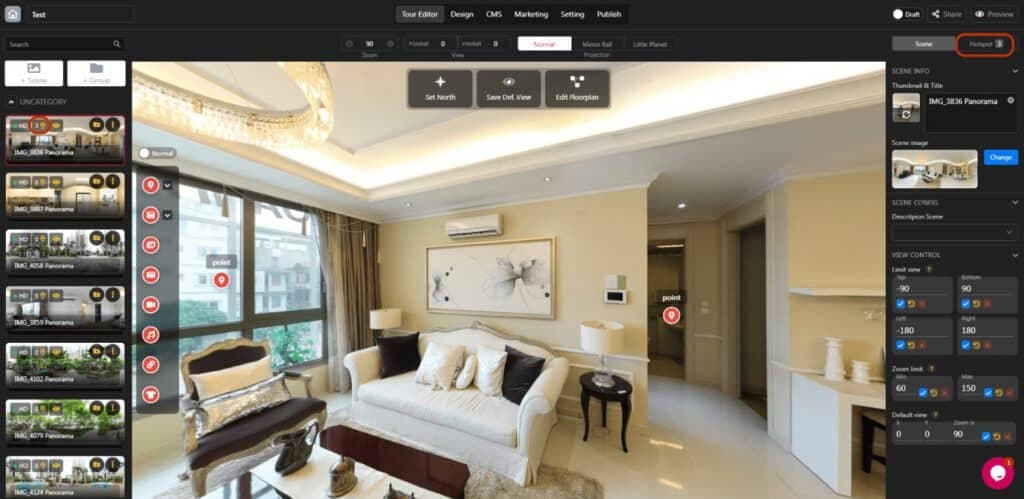
First, you need to create scenes. Then you can manage hotspots with a few clicks: Click the hotspot icon on the scene that you want to manage, or open the scene and click "Hotspot" in the left corner. 1. Now

Read more